Update the Where-to-Buy list
Audience: operators · Scope: the Where to Buy page (reps) · Last reviewed: 2026-07-20
What this does — Refreshes the sales reps and agencies shown on the public Where to Buy page, where customers find who to contact in their area.
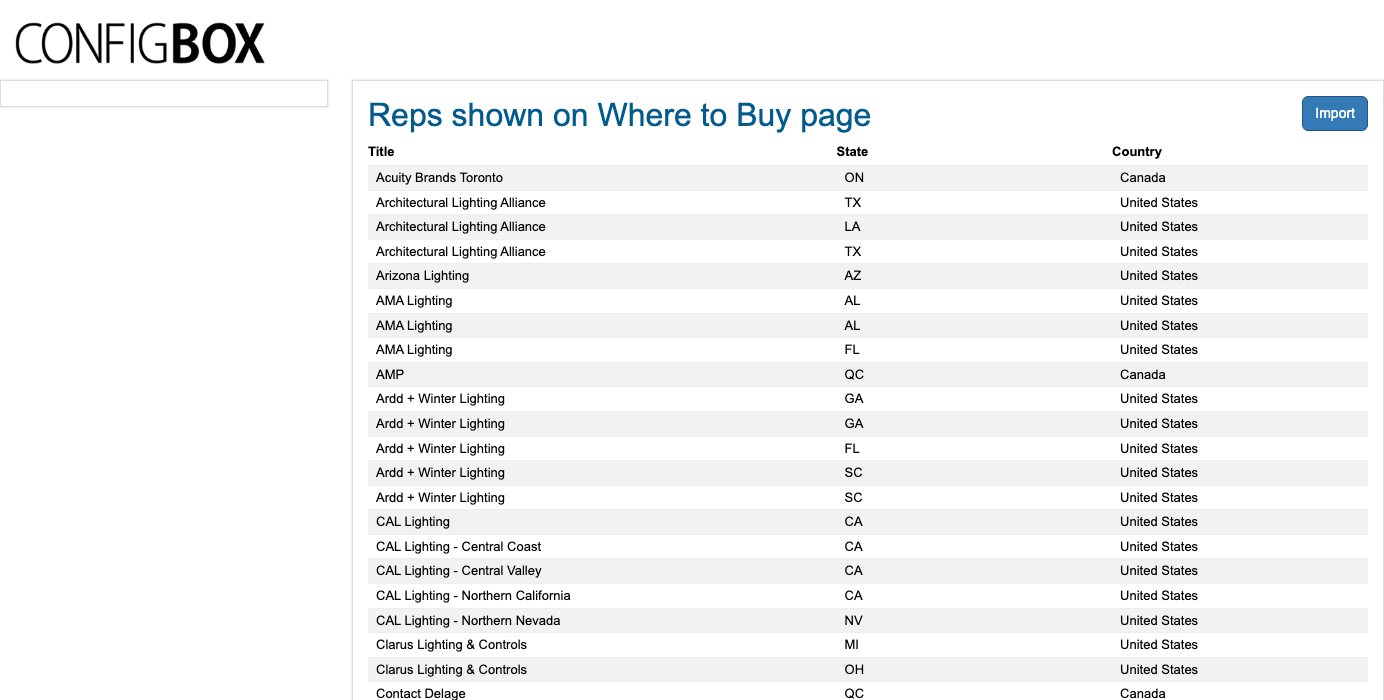
The rep list is not edited here. The screen has no Add button and no editable rows — just an Import button. Reps come from the Rep Master Google Sheet. To change a rep, change the sheet and import.
Before you start
- Be signed in — see Log in to the admin area.
- Make your edits in the Rep Master Google Sheet first — adding a rep, correcting a name, or removing one. Ask your Beta-Calco contact if you don't have access.
Steps
- Click Where to Buy page in the menu. The screen is headed Reps shown on Where to Buy page and lists each rep's Title (name), State, and Country.
- Click Import (top right).
- Wait for the confirmation.
What happens next
- The import replaces the whole list. Every existing rep row is cleared and rebuilt from the sheet, so a rep deleted from the sheet disappears from the site, and one added appears.
- The public Where to Buy page reflects the new list immediately.
- The whole import runs as a single transaction: if anything fails part-way, nothing changes — the previous list stays intact.
Good to know
- The sheet is the source of truth. There's nowhere in the admin to add, edit or delete a rep — don't go looking for a hidden Add button.
- Location is what customers filter by — set the State/Province and Country correctly in the sheet so the rep shows up for the right region.
- A rep covering several areas needs one row per area in the sheet.
- Reps and branches are different lists. Reps are the public-facing contacts on Where to Buy; branches are the rep offices that customer records and quotes are attached to. They're imported separately — see Update the branch list.
Troubleshooting
- "Spreadsheet data did not pass validation." The sheet's header row or its data doesn't match what the system expects. The message lists what's wrong — fix it in the sheet and import again. Nothing was changed.
- "Fetching spreadsheet failed." The sheet moved, was renamed, or its sharing changed. Ask your Beta-Calco contact to check the Rep Master Sheet setting.
- A rep you removed is still on the site. Confirm they're gone from the sheet, then run Import again — removing them from the sheet alone changes nothing until the import runs.
Screens and labels can differ slightly between environments — if a label doesn't match what you see, check with your Beta-Calco contact.