Update the careers page
Audience: operators · Scope: the Career Page group (Hero Images, Job Postings, Testimonials) · Last reviewed: 2026-07-21
What this does — Keeps the public Careers page current: the banner images at the top, the list of open jobs, and the employee testimonials. These are three separate screens grouped under Career Page in the menu.
Before you start
- Be signed in — see Log in to the admin area.
- Click Career Page in the menu to expand it — you'll see Hero Images, Job Postings, and Testimonials.
Post or close a job
The most common careers task.
-
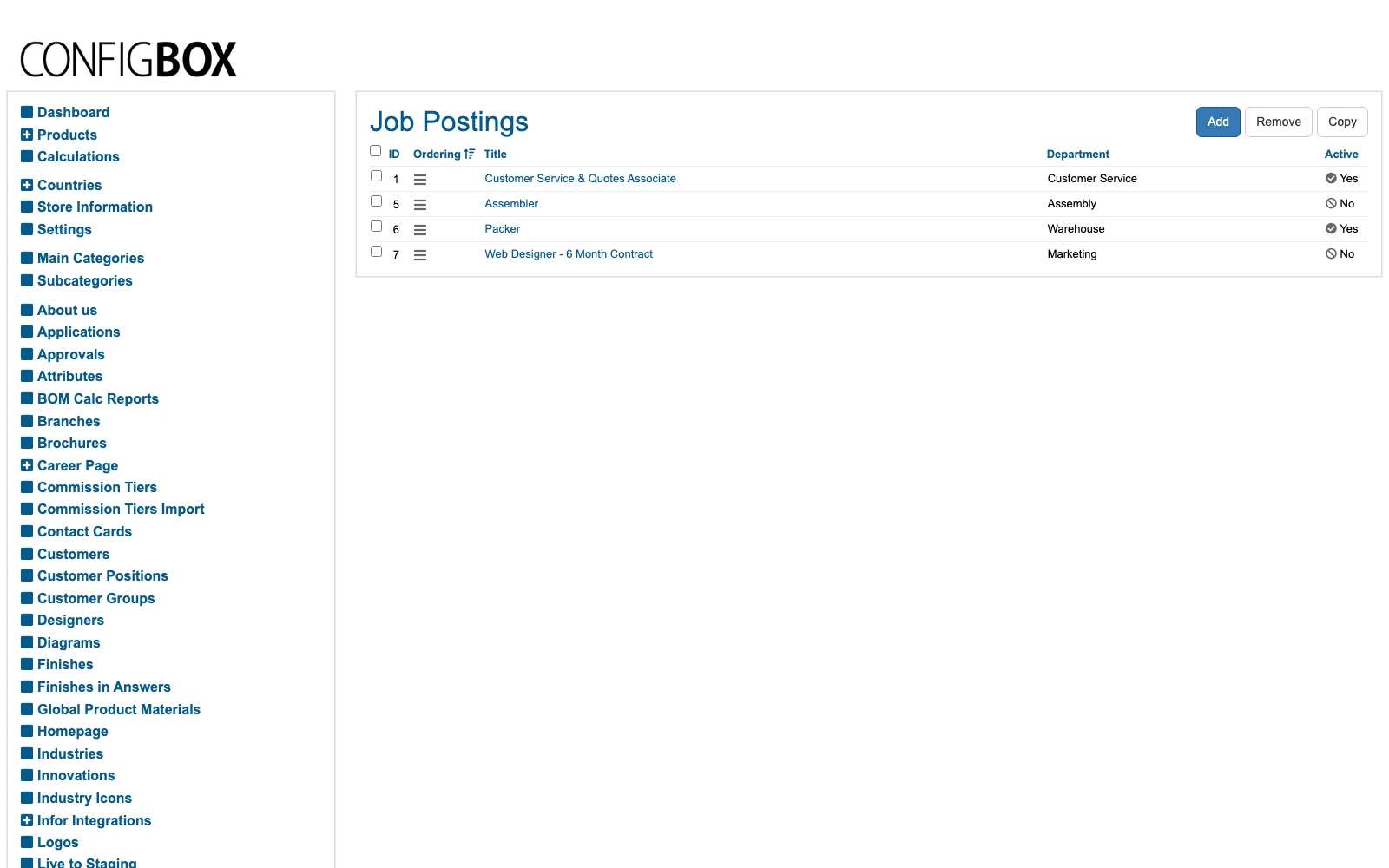
Under Career Page, click Job Postings. The list shows each job's Title, Department, and whether it's Active — closed roles stay in the list with Active: No.
-
To advertise a new role, click Add; to edit or close one, open it.
-
Fill in the job's Title, Department, and description, then set Active to Yes to show it.
-
Click Save.
-
To take a filled role down, open it and set Active to No (don't delete it — you may re-post it).
Change the careers banner images
- Under Career Page, click Hero Images.
- Add or edit an image, upload it (see Add or replace an image or file), set it Active, and Save. Use the drag handle to order them.
Manage employee testimonials
- Under Career Page, click Testimonials.
- Add or edit a testimonial (the person, their words, and a photo), set it Active, and Save.
What happens next
- Active jobs, banners, and testimonials appear on the public Careers page. Refresh the page if a change doesn't show right away.
Good to know
- Active is the on/off switch for all three — hide instead of delete when something is temporary.
- Order is drag-and-drop on each list.
Screens and labels can differ slightly between environments — if a label doesn't match what you see, check with your Beta-Calco contact.