Post a news item
Audience: operators · Scope: the News screen · Last reviewed: 2026-07-12
What this does — Adds a post to the News section of the site (announcements, events, product news). This is the classic edit-screen job, so it's a good one to learn the pattern on.
Before you start
- Be signed in — see Log in to the admin area.
- Have your headline, body text, and any image ready.
Steps
-
Click News in the menu, then Add (or open an existing post to edit it).
-
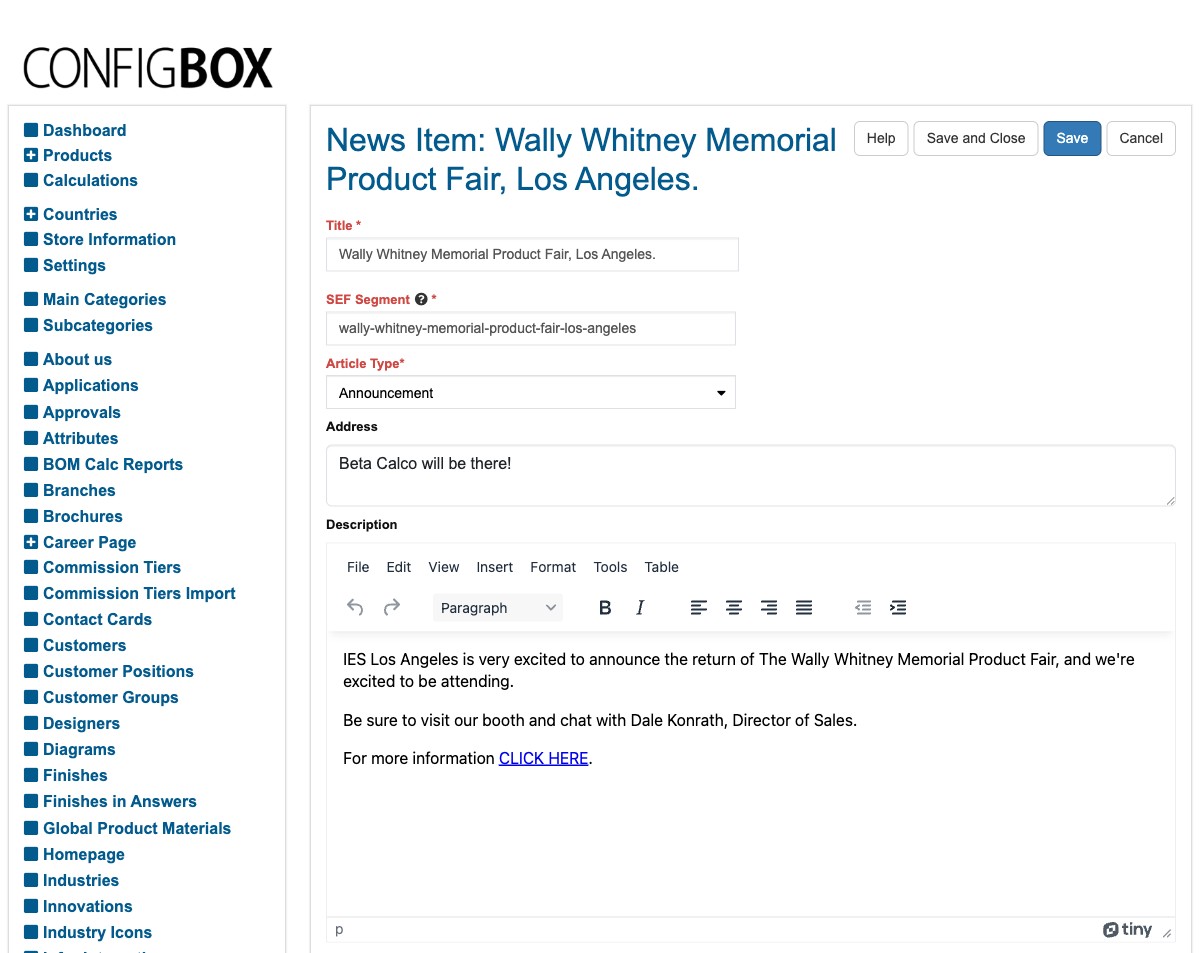
Fill in the fields:
- Title — the headline.
- SEF Segment — the web-address part for this post (lowercase words with hyphens). It's filled from the title; leave it once the post is live so links don't break.
- Article Type — pick the kind of post (for example Announcement).
- Address — a short subtitle/location line shown under the title (optional).
- Description — the body of the post, in the rich-text editor.
- Image (and Image in modal) — the picture for the post — see Add or replace an image or file.
- Date and Sorting Date — the shown date and the date used to order the news list (usually the same).
- Published — Yes to make it live, No to keep it as a draft.
- Visible for these Groups — tick who should see it (see who sees the item).
-
Click Save (or Save and Close).
What happens next
- A Published post appears in the News section for the groups you ticked, ordered by its Sorting Date.
- Refresh the public News page if you don't see it right away.
Good to know
- Newest first. The Sorting Date controls the order — set it to the publish date so new posts appear at the top.
- Draft with Published: No, then flip to Yes when ready.
- Check the groups. A post with the wrong Visible for these Groups ticks can be live but invisible to the audience you meant.
Troubleshooting
- The post isn't showing. Confirm Published: Yes, the Visible for these Groups ticks, and that the Sorting Date isn't set to the future.
Screens and labels can differ slightly between environments — if a label doesn't match what you see, check with your Beta-Calco contact.