Track sales orders & shipments
Audience: sales agents · Scope: the Sales Orders and Shipment Tracking screens · Last reviewed: 2026-07-21
What this does — Once a quote becomes a real order, these two screens let you see the order and follow it to delivery. They read from the order system — you don't enter anything here beyond a lookup.
Sales Orders
Open Sales Orders from the My Beta Calco menu. It lists the confirmed orders for your branch — the quotes that have been turned into orders.
-
The list takes a moment to appear — it shows "Loading orders for your branch" while it fetches from the order system.
-
If nothing has been ordered yet, you'll see "No orders recorded for your branch."
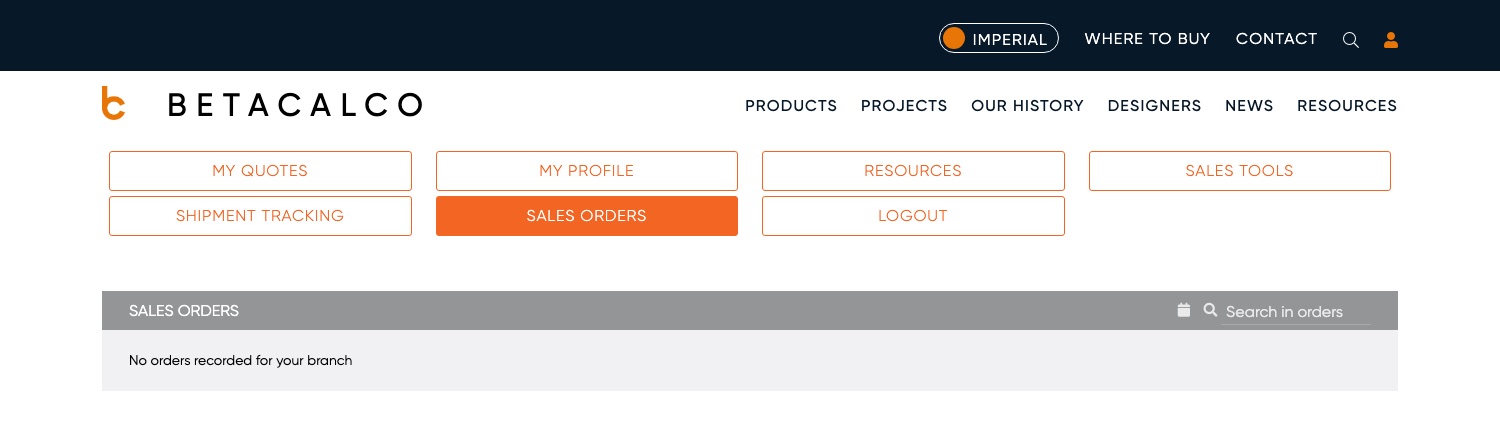
-
Orders appear here after they're placed and confirmed in the order system; this screen reflects that, so there's nothing to add or edit.
Shipment Tracking (Order Tracking)
Open Shipment Tracking (also linked as Order Tracking) to check where an order is.
- Enter your order or purchase number in the search box. The box shows the expected shape —
SO-00XXXXXor a PO number. - Click Search.
- The status for that order is shown.
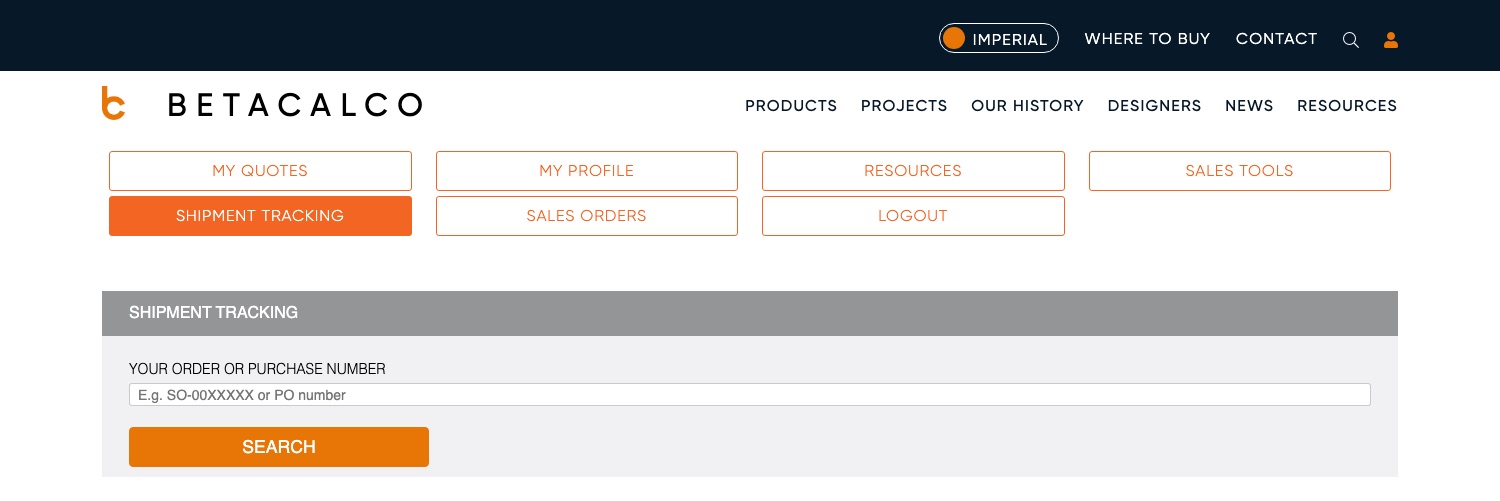
Use this when a customer asks "where's my order?" — you look it up by the order or PO number.
Good to know
- These screens are read-only. They report what the order and shipping systems know; they aren't where orders are created or changed.
- Branch-scoped. Sales Orders shows your branch's orders, not every order in the company.
- No results? If a lookup finds nothing, double-check the order/PO number — an order may not be in the system yet, or the number may be mistyped. If it still doesn't appear, check with your Beta-Calco contact.
Screens and labels can differ slightly between environments — if a label doesn't match what you see, check with your Beta-Calco contact.