Manage your quotes
Audience: sales agents · Scope: working with existing quotes in My Quotes · Last reviewed: 2026-08-24
What this does — Everything after a quote exists: finding it again, keeping revisions, handling alternatives, adjusting line items, and downloading or sending it to the customer.
Your quote list
Open My Quotes. Every quote you've made is a row, newest work easy to find.
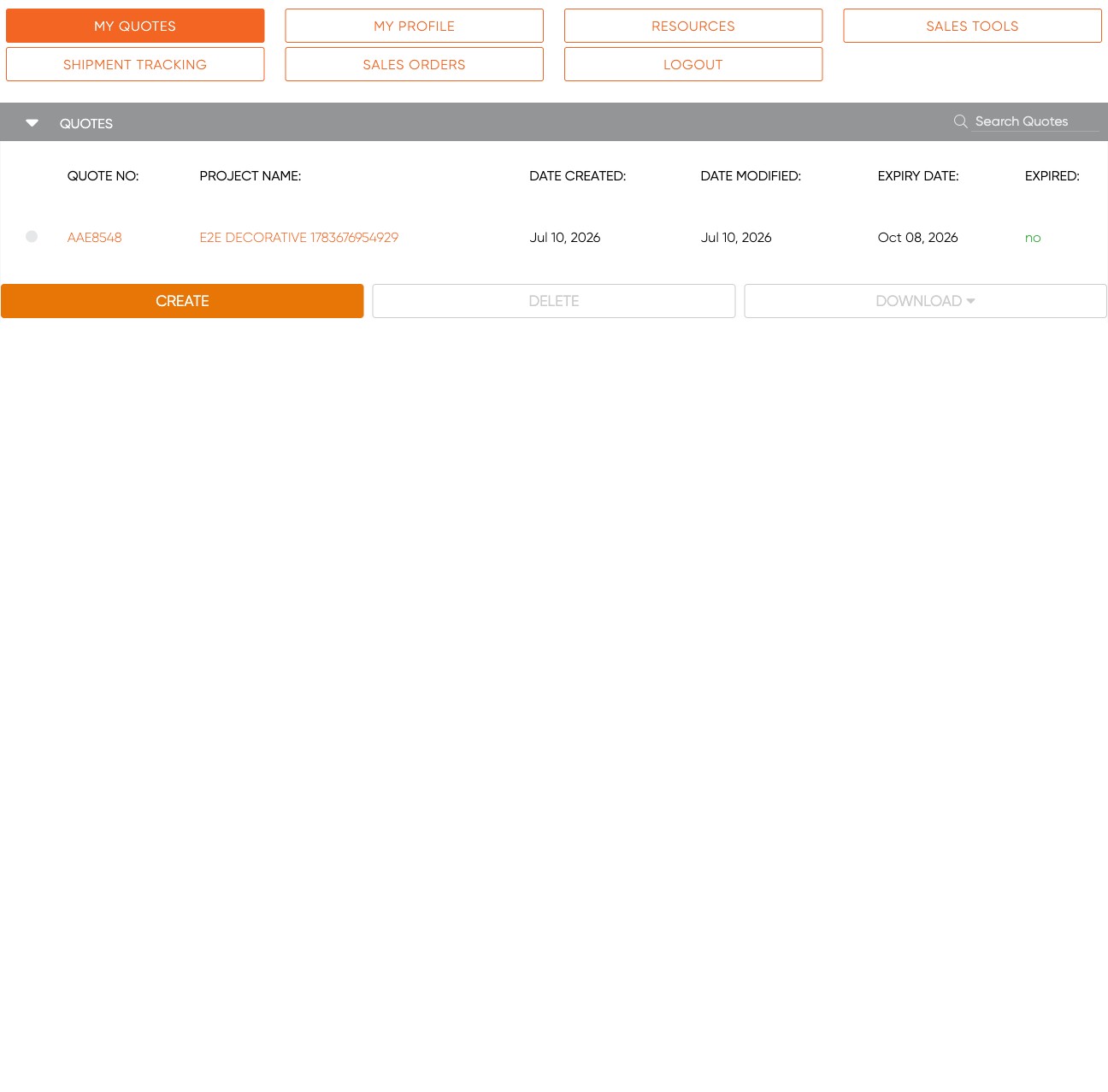
- Columns — Quote No., Project Name, Date Created, Date Modified, Expiry Date, and Expired (yes/no).
- Search Quotes — type in the search box (top right of the list) to filter by name or number.
- Create — start a new quote (see Build a quote).
- Click any row to open the quote and its details below the list.
Open and edit a quote
Click a quote to open its Quote Details and line-item table. From there you can change quantities, add or remove products, and adjust pricing exactly as when you built it — see Build a quote → Read and adjust the line.
Quote status and stage
Every quote carries where the project stands, and it is kept in step with Beta-Calco's CRM:
- Quote Status — Open, Won or Lost. Set it to Lost and a Lost Reason list appears; pick the closest reason (choose Other to type your own). Switching back to Open clears the reason.
- Quote Stage — the same stage list you chose from when creating the quote, with a short description under each stage. Moving a quote to the stage that marks an order as secured sets the status to Won by itself; moving a won quote back to an earlier stage reopens it.
Each change is saved the moment you make it (a short "Saved" note appears under the controls) and is passed on to the CRM with the next sync, so there is no separate save button. You will find both controls in the Quote Details panel, next to the revisions.
Revisions
A quote can hold several revisions — versions you can compare or roll back to.
- Use New Revision in Quote Details to snapshot the current version and keep editing.
- The Revisions selector switches between them; the date and time in each label tell them apart.
Use this when a customer asks for a changed price or spec but you want to keep the original on file.
Alternatives
An alternative line is a "instead-of" option for the customer — for example the same fixture in a different finish or output. Mark a line as an alternative in one of two ways:
- When adding a fixture, tick "This is an alternative for another line item" in the Add-to-Quote panel.
- On an existing line, use the Is Alt column.
Alternatives are listed separately at the bottom of the quote and do not count toward the totals — so the customer sees the option without it inflating the price.
Adjust pricing on a line
Each line can be fine-tuned without rebuilding the fixture:
- Qty — type a new number in the quantity box.
- Additional Discount — click edit on the line to enter an extra discount beyond any automatic volume discount.
- Overage Split and Commission Rate — nudge with the up/down arrows; the commission totals recalculate.
Duplicate, copy, or remove
- Duplicate Product — copy the selected line as-is, then change one or two options.
- Add same/similar — reopen the same product fresh to configure a close variant.
- Delete Product — remove the selected line from the quote.
Download or send a quote
- On My Quotes, tick the checkbox next to the quote (or quotes) you want.
- Click Download. You get the quote as a document to save, print, or email to the customer.
For automated follow-up — the reminder emails and the no-login link a customer uses to accept or ask questions — see the Quote Follow-Up system. That's separate from downloading the quote yourself.
Delete a quote
Tick the quote on My Quotes and click Delete. This removes the whole quote — do it only for drafts and mistakes you're sure about; consider a new revision instead if you just want to change something.
Good to know
- Expired quotes stay in your list. When a quote passes its expiry date, Expired shows yes. You can still open it and start a fresh revision to re-quote.
- Date Modified tells you which quotes you touched most recently — handy for picking up where you left off.
- Deleting is permanent; revising is safe. When in doubt, add a revision rather than delete.
Screens and labels can differ slightly between environments — if a label doesn't match what you see, check with your Beta-Calco contact.