Build a quote for a customer
Audience: sales agents · Scope: creating a quote and adding configured products to it · Last reviewed: 2026-08-24
What this does — Walks through making a customer quote end to end: you start a quote, add one or more configured fixtures from the catalog, and the tool prices each line — list price, discounts, and your commission — into a running total you can download and send.
Before you start
- Be logged in on the website. Click the person icon (top right), enter your email and password, and Sign in. Once in, open My Quotes from the user menu (person icon) or the My Beta Calco links in the footer.
- Know the basics you'll want on the quote: a project or customer name, and the fixtures (with their options) you're quoting.
Step 1 — Start the quote
- On My Quotes, click Create. A new, empty row appears with a Quote Name box and a Quote stage dropdown.
- Type a name you'll recognise later — usually the project or customer name.
- Open the Quote stage dropdown and pick where this project stands right now — each stage shows a short description under its name to help you choose (for example Design / Budget for budgetary pricing with no spec yet). Nothing is pre-selected, and the quote can't be saved without a stage. The stage moves the deal in Pipedrive; picking the stage that marks an order as secured records the quote as won straight away.
- Click the ✓ (check) to save it.
- The quote gets its own Quote No. automatically (for example AAE8563) and an Expiry Date about three months out. Click the new row to open it.
Step 2 — Get to know the Quote Details
Opening a quote shows its Quote Details: the name and number, the dates, the Currency, a running Price (it starts at $0.00), and a Revisions selector. Everything you add below updates the price here.

- Revisions — a quote can hold more than one version. Use New Revision to snapshot the current one and keep working, so you can compare or roll back. The selector switches between them.
- Register out-of-territory quote — use this when the project is outside your normal territory, so it's flagged and routed correctly. If you're unsure whether a project counts, check with your Beta-Calco contact.
Step 3 — Add a configured product
- Click Add different Product. This opens the product catalog.
- Pick the product you want to quote. This opens its configurator.
- Choose an option in every group — diameter, distribution, colour temperature (CCT), voltage, finish, and so on. As you choose, the Product Code builds up and the live figures (lumens, watts) update.

The configurator won't let you add an unfinished fixture. If you click Add to Quote before every required group is chosen, it highlights each one you still need with "Please make a selection in this field." Some options depend on others — for example, the distribution you pick changes which light-output options are available — so a choice can reset a group you'd already set. Just re-check the highlighted groups.
Step 4 — Add it to your quote
- When the fixture is complete, click Add to Quote.
- A small panel opens. Under Add to existing quote, click the quote you're building (it's usually marked last viewed). (If you started here without a quote, you can type a name under New Quote, pick the Quote stage — same dropdown as on My Quotes, required — and click Create instead.)
- Leave "This is an alternative for another line item" unticked for a normal line. Tick it only when this fixture is an alternative to one already on the quote (see Manage your quotes).
You land back in the quote with the fixture added as a line item, priced automatically.
Step 5 — Read and adjust the line
The line-item table prices each fixture across several columns and totals them at the bottom.
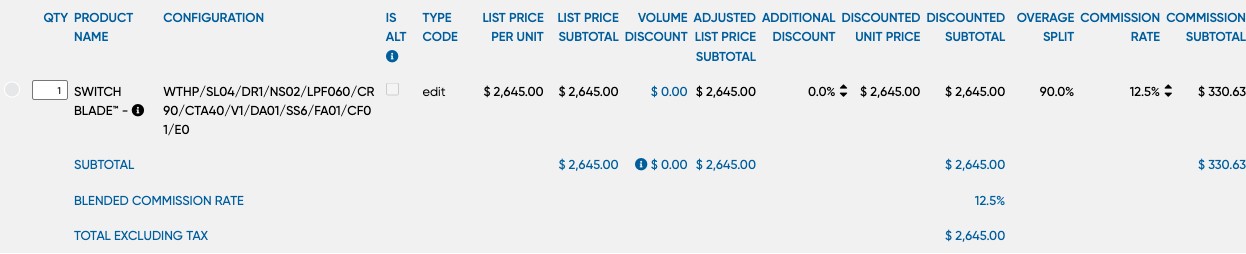
- Qty — type a new quantity in the box to change how many of this fixture the customer wants.
- List Price — the catalog price for the configured fixture, per unit and as a subtotal.
- Volume Discount — applied automatically when the fixture belongs to a volume-discount group and the quantity reaches a tier (set up in Quotes & sales → volume discounts).
- Additional Discount — an extra discount you can enter on the line with the edit button.
- Overage Split and Commission Rate — adjust with the up/down arrows; the Commission Subtotal and the Blended Commission Rate at the bottom update to match.
- Total Excluding Tax — the quote total before tax.
Step 6 — Add more, then save
- Add different Product — quote another, different fixture.
- Add same/similar — start from this product again (handy for a near-identical fixture).
- Duplicate Product — copy the selected line as-is, then tweak it.
- Select a line and use Edit Product to reopen it in the configurator, or Delete Product to remove it.
Your changes are kept as you go — the Date Modified updates. When the quote is ready, download or send it from My Quotes (see Manage your quotes → Download or send a quote).
Good to know
- Alternatives don't count toward the total. A line ticked as an alternative is listed separately at the bottom and left out of the totals — see Manage your quotes.
- Prices come from the current catalog and reference data. List prices, volume discounts, and commission rates all come from the back-office setup; if a number looks wrong, it's usually the setup, not the quote.
- Expiry. A quote carries an expiry date. Past it, the quote shows as expired in your list — you can still open it and start a new revision.
Screens and labels can differ slightly between environments — if a label doesn't match what you see, check with your Beta-Calco contact.