Manage volume discounts
Audience: operators · Scope: Volume Discount Groups and Volume Discount Tiers · Last reviewed: 2026-07-12
What this does — Volume discounts give customers a bigger discount as an order grows. You define the discount breakpoints in a tier, and the groups decide which products a tier applies to.
Before you start
- Be signed in — see Log in to the admin area.
- The menu has two related entries: Volume Discount Groups (which products get which tier) and Volume Discount Tiers (the actual breakpoints).
Set the discount breakpoints (a tier)
A tier has up to 10 levels. Each level has a Length (the size the order must reach) and a Discount Percentage (what's given at that size). As an order passes each level, the bigger discount kicks in.
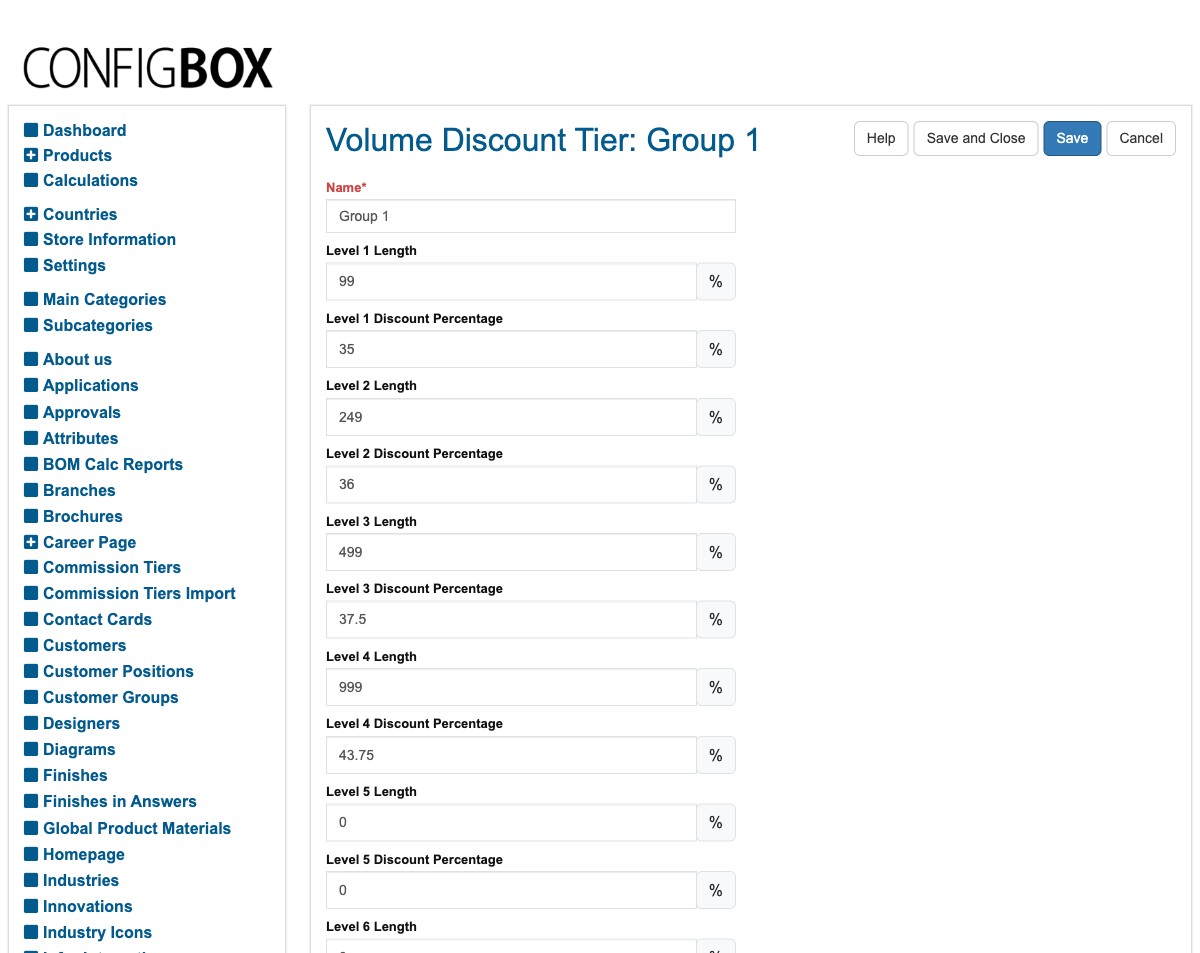
- Click Volume Discount Tiers in the menu, then Add (or open a tier such as Group 1).
- Give the tier a Name.
- Fill in the levels from smallest to largest — for each level set the Length and its Discount Percentage (for example: up to 99 → 35%, up to 249 → 36%, up to 499 → 37.5%, up to 999 → 43.75%).
- Leave the unused levels at 0.
- Click Save.
Choose which products a tier applies to (a group)
- Click Volume Discount Groups in the menu.
- Add or edit a group to link products (or a product group) to a discount tier, then Save.
What happens next
- When a customer's order reaches a level's Length, that level's discount is applied automatically in the quote/pricing.
Good to know
- Fill levels in ascending order and leave unused levels at 0 — a stray value in a higher level can produce an unexpected discount.
- Length is the order size the level applies from (for linear products this is the run length). Match your breakpoints to how the products are actually sold.
- Groups connect tiers to products — a tier on its own does nothing until a group points products at it.
Screens and labels can differ slightly between environments — if a label doesn't match what you see, check with your Beta-Calco contact.