Find and update a customer
Audience: operators · Scope: the Customers and Customer Positions screens · Last reviewed: 2026-07-20
What this does — Every person with a Beta-Calco website account — sales agents, specifiers, staff — has a customer record. It holds their contact and address details, the branch they belong to, and their position (job role). You'll come here to correct someone's details, move them to a different branch, or check which customer group they're in.
Before you start
- Be signed in — see Log in to the admin area.
- Click Customers in the menu. Two related entries sit right next to it: Customer Positions (the list of job roles you can pick from) and Customer Groups (what a group controls).
Find a customer
The list shows Billing Company Name, Billing First Name, Billing Last Name, Billing Email, Branch, and Customer Group.
- Use the Filter box above a column to search it — the surname and email boxes are the quickest way in.
- Use the No Branch filter and No Customer Group filter dropdowns to narrow to one branch or group.
- Click the person's name to open their record.
For how the filters combine and how to clear them, see Search and filter a list.
What you can change
The record opens with the Billing Address on the left and the Delivery Address on the right (tick Same as billing when they're the same):
- Company, salutation, First Name, Last Name, Address, Address 2, ZIP code, City, Country, State, Email, Phone, VAT IN, language, and a Newsletter Yes/No.
- Branch — the rep office or agency this person belongs to. This drives which branch their quotes are attributed to, so it's worth getting right.
- Customer Position — their job role, picked from the Customer Positions list (see below).
Below that the record shows read-only history that's useful when you're investigating something: Date Last Login, Date when user was last disabled, the last recorded browser/IP details, and collapsible Consent Settings and Geolocation infos sections.
Click Save (or Save and Close) when you're done.
The customer's group isn't editable on this screen. The Customer Group column tells you which group someone is in, but there's no dropdown to change it here — a customer lands in a group automatically (see How a customer ends up in a group). If someone is in the wrong group, ask your Beta-Calco contact to move them.
Manage the list of job roles
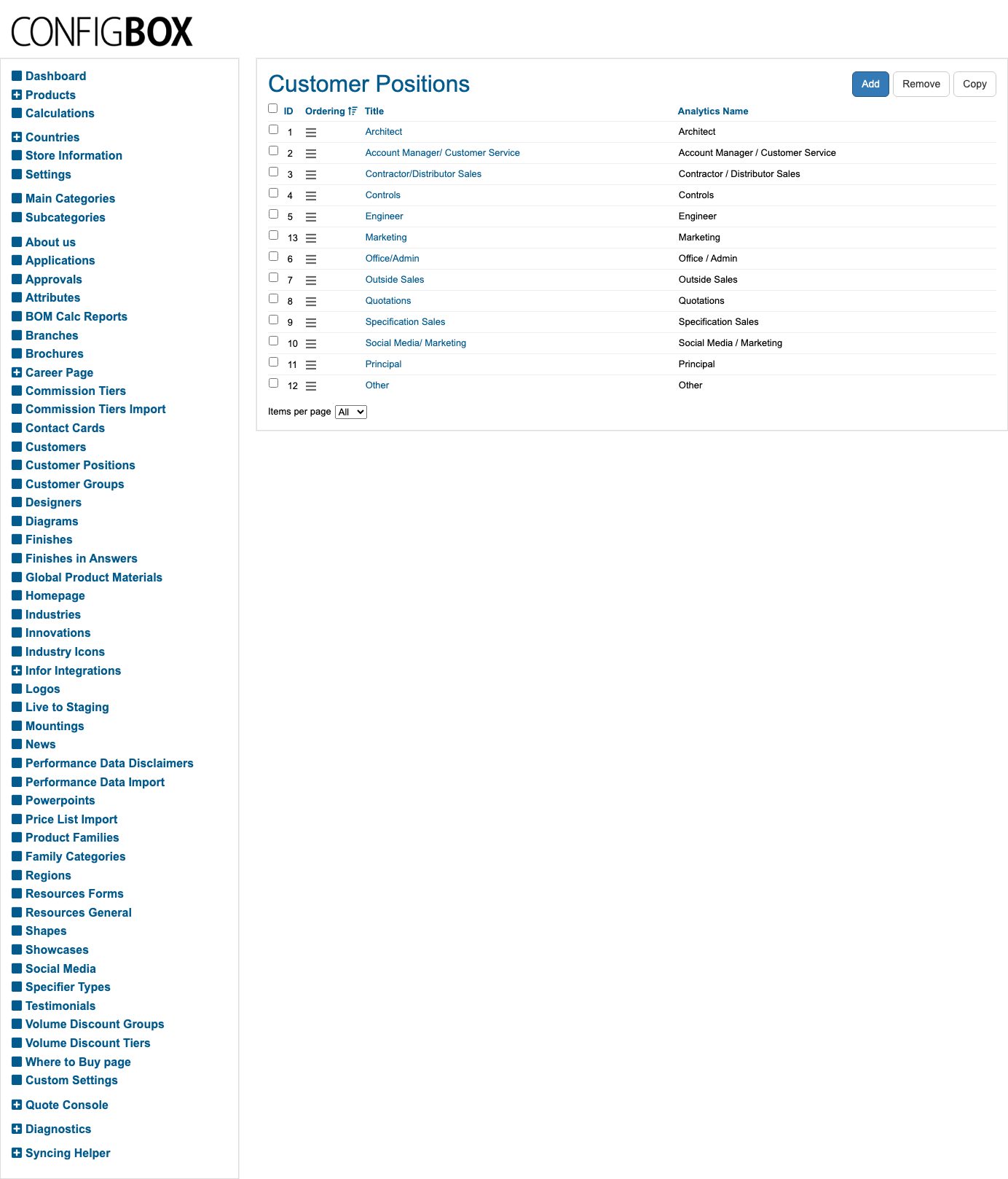
Customer Positions is the short list of job roles that the Customer Position dropdown offers — Architect, Engineer, Outside Sales, Quotations, Specification Sales, Marketing, Principal, Other, and so on. People also pick their own position when they register and on their My Profile page.
- Click Customer Positions in the menu.
- Add a new one, or click a Title to edit it.
- Fill in the Title (required) and, if you want it reported separately in the website statistics, an Analytics Name. Use Ordering to control where it appears in the dropdown.
- Click Save.
Move many customers to a branch at once
When a rep agency changes, you don't have to open every record:
- On the Customers list, tick the customers you want to move.
- Click Bulk-assign users to a branch.
- Pick the branch from the dropdown — or pick Unassign branch to clear it — and click Assign.
If the reason you're moving people is that their branch was deleted (dropped from the Rep Master sheet), the Branch Cleanup screen is quicker — it lists exactly those users, already grouped per deleted branch.
What happens next
- Address and contact changes apply immediately, and are used on the person's next quote.
- A branch change means their new quotes are attributed to that branch (and flow to the matching organisation in the CRM).
- A position change shows on their profile and in the website statistics.
Good to know
- You can't delete a position that's in use. If a job role is still set on someone's record, the system refuses the delete and lists the accounts still using it. Reassign those people first.
- Analytics names are sticky. Once a position (or group) has an Analytics Name, changing it splits the history in the website statistics. Pick one and leave it alone.
- Blocking someone is a Joomla job, not a ConfigBox one. The Date when user was last disabled field only reports it — enabling and disabling accounts happens in the platform's own user manager. Ask your Beta-Calco contact.
- Temporary records are hidden. The list deliberately leaves out the throwaway records the site creates during an unfinished checkout, so it stays readable.
Troubleshooting
- You can't find someone you know has an account. Clear every filter first — a leftover branch or group filter is the usual cause. Then search on Billing Email rather than the name; people often register with a different name spelling.
- Two records for the same person. That happens when someone registers twice with different email addresses. Don't delete either one before checking which carries their quotes — ask your Beta-Calco contact.
Screens and labels can differ slightly between environments — if a label doesn't match what you see, check with your Beta-Calco contact.