Control what a customer group can see and do
Audience: operators · Scope: the Customer Groups screen and group-based visibility · Last reviewed: 2026-07-20
What this does — A customer group is the single most powerful setting behind the website. It decides which currency someone is quoted in, whether they see prices at all, whether they can request a quote, what discount they get, and which products they even see in the catalog. Everyone with an account belongs to exactly one group.
Because so much hangs off it, treat this screen with care: a change here affects every person in that group, immediately.
Before you start
- Be signed in — see Log in to the admin area.
- Click Customer Groups in the menu.
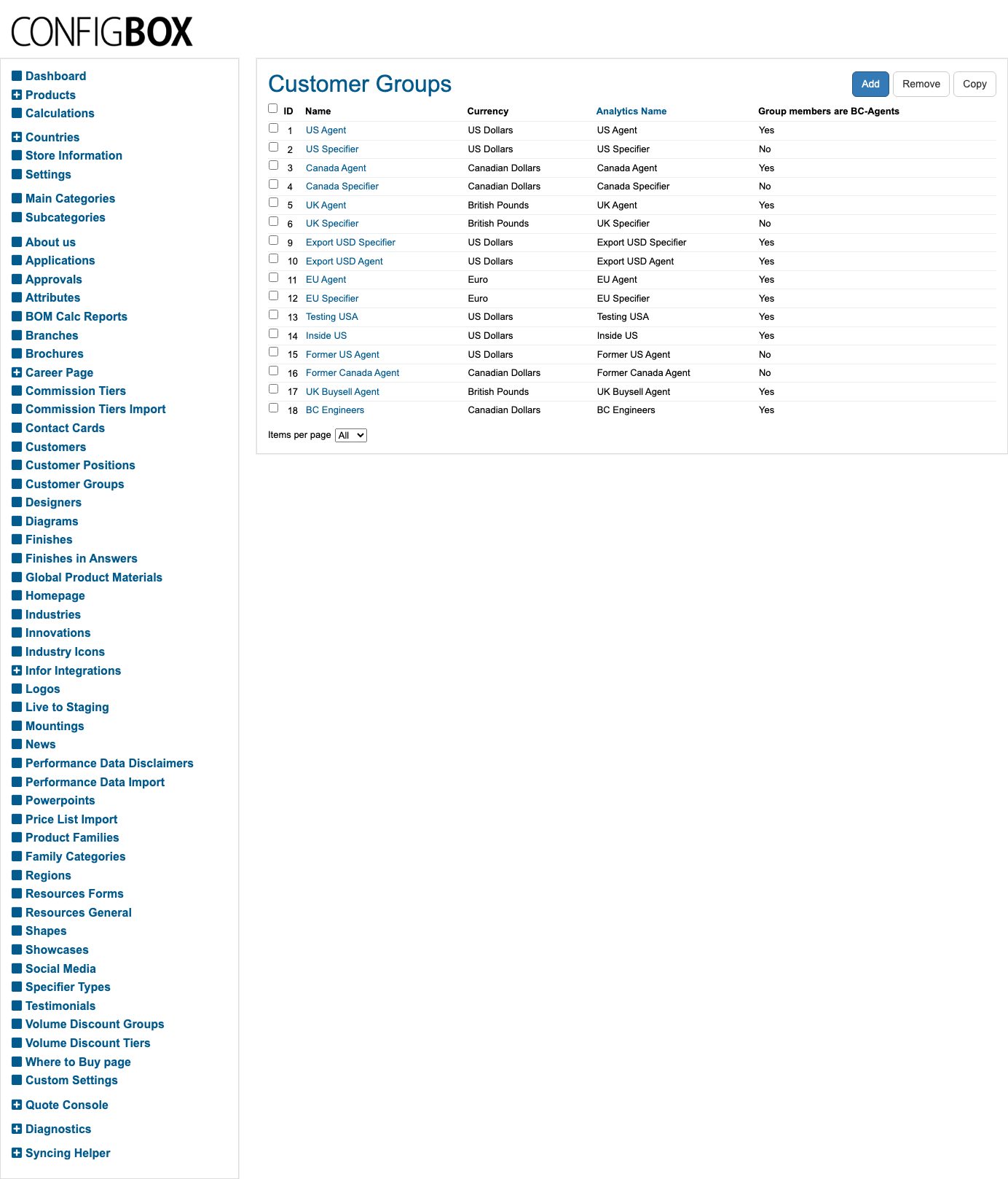
- Know which group you actually mean. Beta-Calco runs a group per region and audience — for example US Agent, US Specifier, Canada Agent, UK Agent, EU Specifier — plus a few historical ones such as Former US Agent.
What a group controls
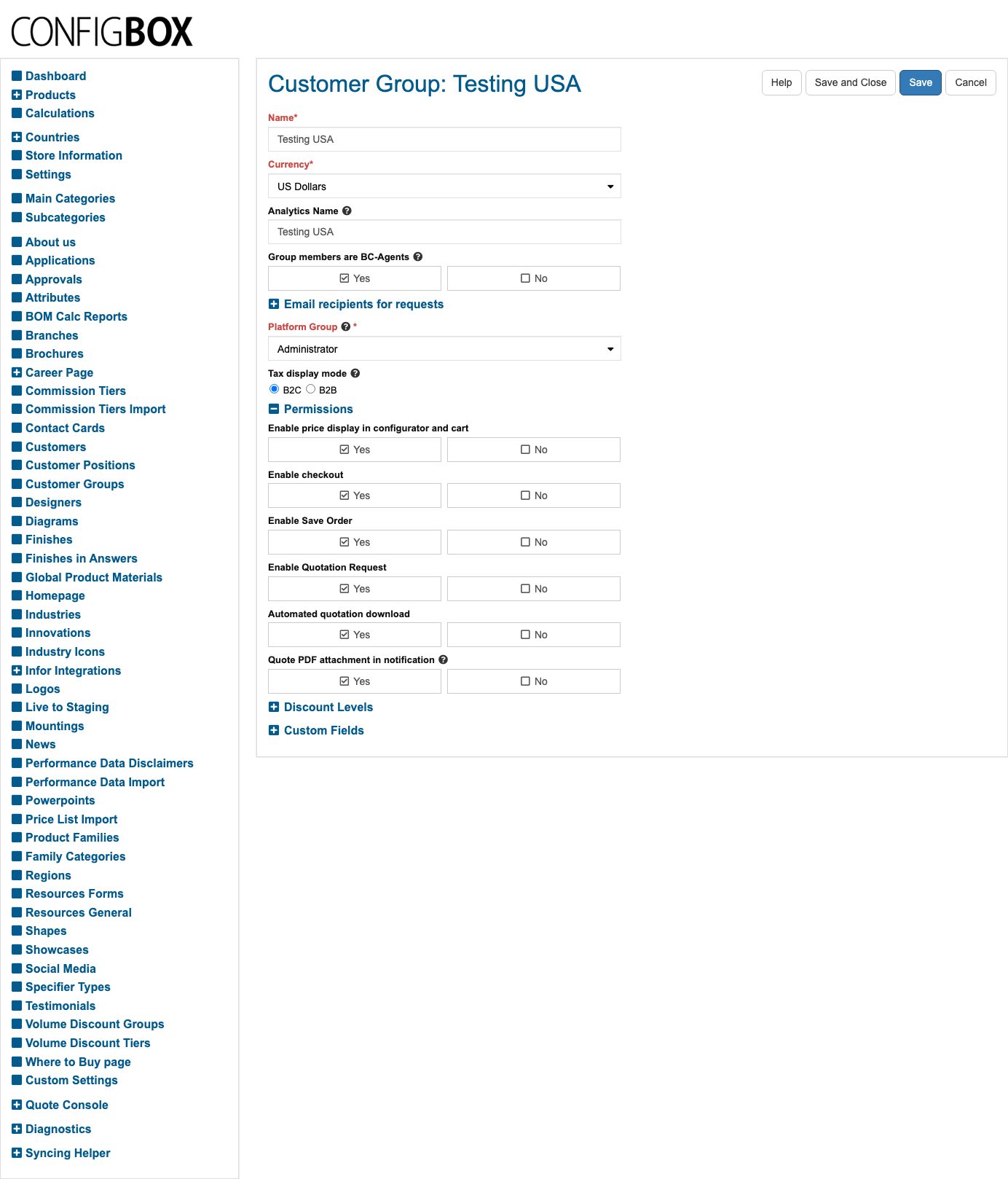
Open a group to see the settings, grouped down the form:
The basics
- Name (required) — what the group is called in the admin.
- Currency (required) — the currency everyone in this group is quoted in. This is why the region groups exist: US Agent is in US Dollars, UK Agent in British Pounds, and so on.
- Analytics Name — the label this group appears under in the website statistics.
- Group members are BC-Agents — set to Yes for Beta-Calco sales agents. Agents see pricing and get the agent-only areas of the site (Sales Tools, agent Resources) and the agent quote tools. Specifier groups are No.
- Platform Group (required) — the underlying website user group new members are put into. Leave this alone unless your Beta-Calco contact asks you to change it.
- Tax display mode — B2C shows prices with tax included, B2B shows them net.
Permissions — six Yes/No switches that turn features on or off for everyone in the group:
| Switch | What it does when set to No |
|---|---|
| Enable price display in configurator and cart | Prices are hidden throughout the site |
| Enable checkout | The group can't place an order |
| Enable Save Order | The group can't save an order for later |
| Enable Quotation Request | The group can't request a quote |
| Automated quotation download | The quote isn't offered as an automatic download |
| Quote PDF attachment in notification | The quote PDF isn't attached to the notification email |
Discount Levels — up to five Regular and five Recurring levels. Each level says from this order value upward, give this discount, as either a percentage or a fixed amount, with a title that appears on the quote. This is a group-wide discount and applies on top of the product pricing.
Email recipients for requests — who gets notified about registrations, specifier quote requests, and brochure print requests from this group. One address per line; leave a box empty to fall back to the site-wide addresses in Custom Settings.
How a customer ends up in a group
You don't pick someone's group on their customer record — it's set for them, in one of these ways:
- When they register. New accounts go into the site's default customer group, configured in Custom Settings.
- When they choose a region. Picking a region from the flag in the site header moves the visitor into that region's Default Customer Group — this is how a UK visitor ends up seeing pounds. See the region's own Default Customer Group field.
- By your Beta-Calco contact, for staff and agent accounts that need a specific group.
Because of route 2, someone's group can change simply by them switching region on the website. That's normal and intended — it's the pricing/region switch.
Control which products (and files) a group sees
The same groups drive who sees what across the site. The field has a slightly different name on each screen, but it works identically — tick the groups that should have access:
| Screen | Field on the edit form |
|---|---|
| Products | Group Assignments |
| News | Visible for these Groups |
| Brochures, Powerpoints, Diagrams | Allowed Customer Groups |
If a product has no group ticked that matches the visitor's group, that product simply isn't there for them — not in the catalog, not on the family pages, not in the downloads, and not in the agent's product picker when building a quote. See also Fill in an item's details → Visible for these Groups.
What happens next
- Changes take effect on the group's next page load — there's no publish step.
- Currency, permission and discount changes apply to new quotes. Quotes already saved keep the figures they were built with.
Good to know
- This is the biggest footgun in the admin. Leaving every group unticked on a product hides it from everyone — the product looks fine in the admin and is invisible on the site. When something "isn't showing", check the group ticks first.
- Don't rename or delete a group casually. Groups are wired into products, brochures, regions and the agent tools. The edit screen lists the customers currently in the group at the bottom — check it before you change anything.
- Currency belongs to the group, not the person. To quote someone in a different currency, they have to be in a different group.
- "Group members are BC-Agents" is what unlocks the agent side of the site. If an agent reports that Sales Tools or Resources says it's agents-only, this switch on their group is the first thing to check.
- Analytics names are sticky — changing one splits the history in the website statistics.
Troubleshooting
- A customer says a product isn't on the site. Open the product and check Group Assignments includes their group. Then check the product isn't discontinued or hidden.
- Someone sees no prices anywhere. Their group has Enable price display in configurator and cart set to No.
- Someone is quoted in the wrong currency. They're in the wrong group — most often because they picked a different region in the site header.
Screens and labels can differ slightly between environments — if a label doesn't match what you see, check with your Beta-Calco contact.