Update the acoustic calculator
Audience: operators · Scope: the public Acoustic Calculator and the data behind it · Last reviewed: 2026-07-25
What this does — The Acoustic Calculator is a public tool where a visitor describes a room (size, surfaces, what the space is used for) and gets back how reverberant it will be and how many Beta-Calco acoustic fixtures it takes to hit the target. Visitors reach it at Resources → Acoustic Calculator, and from the ACOUSTIC CALCULATOR button on selected product pages.
Almost nothing about it is edited on a normal admin screen. The lists it offers — materials, space functions, acoustic products — come from three data files you upload, and the calculation itself runs on a service Beta-Calco hosts elsewhere. This article covers the two jobs you can actually do: replace a data file and show or hide the link from a product.
Before you start
- Be signed in — see Log in to the admin area.
- You don't author the data files. They are prepared for you (by your Beta-Calco contact or whoever maintains the acoustic data) and handed over ready to upload. Your job is to put the right file in the right place, on the right environment.
- Each file must be a
.jsonfile under 50 KB. The products file is already around 40 KB, so it is the one most likely to be refused as too large — if it is, say so when you ask for the file, don't try to trim it yourself. - Keep your own copy of every file you upload. The site renames uploads, so once a file is in you cannot tell from the screen which version it is (see Good to know).
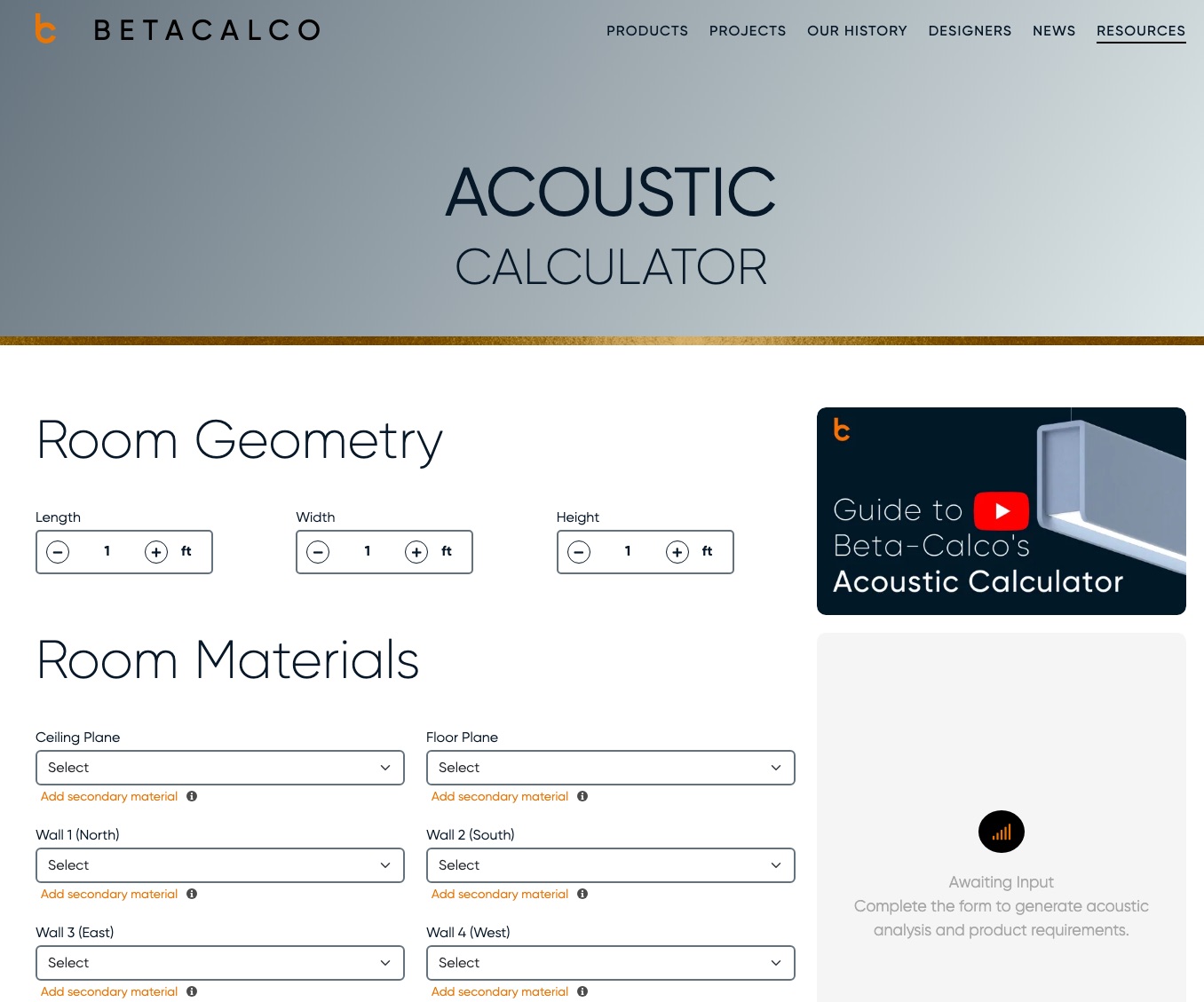
What the three files control
| The file | What it feeds on the public page |
|---|---|
| Materials JSON File | The six surface dropdowns — Ceiling Plane, Floor Plane, and Wall 1 (North) to Wall 4 (West) — including the Secondary Material dropdown behind Add secondary material. |
| Products JSON File | The Acoustic Product Series dropdown, and everything that follows from a choice there: Available Sizes, Length per Unit, Spacing, Aperture, and the product picture. |
| Room Targets JSON File | The Space Function dropdown, and the Target RT60 Goal that auto-fills when a space function is picked (the visitor can still type their own). |
A material belongs to one surface type. A material offered on both walls and ceilings needs a separate entry for each — if the file lists several surfaces for one material, only the first is used, and it appears in that one dropdown only. Today's list works out at roughly 25 wall materials, 10 ceiling and 5 floor.
Replace a data file
- Click Custom Settings in the menu, and open the row for the environment you're changing — normally live. See The Custom Settings screen.
- Open the Acoustic Calculator group (it starts collapsed).
- Find the file you're replacing — Materials JSON File, Products JSON File or Room Targets JSON
File. Each shows Current file: with a name like
3.json, or No file stored yet. - Click Replace file, choose the new
.jsonfile, and Save. - Open Resources → Acoustic Calculator on the public site and check the dropdown you expected to change.
Repeat per file. There is no "import all three" step, and no preview — the public page is the check.
Show or hide the link on a product page
The ACOUSTIC CALCULATOR button that appears on a product's configurator page is a per-product switch.
- Open the product — see Add or edit a product.
- Open the Acoustic Calculator section — it is the last section on the form, and starts collapsed.
- Set Enable Link to Acoustic Calculator to Yes (or No to remove the button), and Save.
It's No by default; around 28 products currently have it on. The button always opens the same calculator — it does not pre-select that product, so turning it on for a non-acoustic product just sends people somewhere irrelevant.
What happens next
- A replaced file takes effect immediately — the next visitor to load the calculator gets the new lists. There is no cache to clear and no scheduled job involved.
- Each environment keeps its own files. Uploading on staging changes nothing on live, and vice versa.
- Nothing about a visitor's calculation is saved: no history, no report, no record of what anyone worked out.
Good to know
- The screen shows a number, not your filename. After upload the file is renamed after the settings
record — so all three boxes read the same thing,
1.jsonon live, whatever you sent. That's normal, but it means the screen can't tell you which version is loaded, or even which of the three you're looking at apart from the label above it. Keep your own copies, named properly. - There is no way to remove a file, only replace it — which is what you want, since an empty setting would leave the matching dropdowns blank on the public page.
- The data file can hide a product without removing it, so a product missing from Acoustic Product Series may be hidden on purpose rather than left out by mistake. Ask before assuming the file is wrong.
- Product pictures are not in the file — the file only points at them. A new acoustic product needs its
picture put in the site's
acoustic-calculatorimage folder as well, or its slot on the page stays empty. - Feet or metres follows the visitor's region, the same setting that drives currency — see Manage regions. You don't set units on the calculator itself.
- The first calculation after a quiet spell can be slow. The calculation service goes to sleep when unused and takes a few seconds to wake. A one-off delay is expected; a consistent delay is not.
- The tool's own "Send Feedback" link (under a result) goes to a Google form, not to anyone's inbox on the site. If you're expecting to see visitor feedback, that's where it is.
- The video guide picture above the results panel is part of the page design, not a setting — changing the image or the video it links to is a job for your Beta-Calco contact.
- The connection setting is shared with the chat helper on this page — see below. Changing Acoustic Calculator Endpoint URL moves both.
The chat helper (agents only)
Signed-in Beta-Calco agents get one extra thing on this page: the small Info button beside each surface shows a Learn more link, which opens a chat helper that answers questions about the calculator. Customers and anonymous visitors don't see it — it depends on Group members are BC-Agents on the person's customer group (see What a customer group controls).
There is nothing to configure. The helper has no settings of its own — it uses the same connection as the calculator, so if the calculator can't calculate, the helper won't answer either, and vice versa. Nothing is kept: conversations aren't stored anywhere, so if an agent reports a bad answer, ask them for a screenshot.
Troubleshooting
- A dropdown is empty (only "Select"). That file is missing or unreadable. The page still loads normally and shows no error, so an empty dropdown is the only symptom — which file is empty tells you which one to re-upload. Empty surface dropdowns → the materials file; empty Acoustic Product Series → the products file; empty Space Function → the room targets file.
- The form fills in fine, but Calculate Requirements fails. That's the calculation service, not your data. Check with your Beta-Calco contact — and mention whether the chat helper is failing too, since the two share a connection and that narrows it down quickly.
- A new product doesn't appear in the list. Check you uploaded to the environment you're looking at (usually live), and that the file doesn't mark the product as hidden.
- A product has no picture in the calculator. The picture is a separate upload to the site's images — the data file only points at it.
- A material shows on walls but not ceilings. Expected: one entry, one surface. The file needs a second entry for the other surface.
Screens and labels can differ slightly between environments — if a label doesn't match what you see, check with your Beta-Calco contact.
For developers → docs/features/acoustic-calculator.md.