Manage shared files (Global Product Materials)
Audience: operators · Scope: the Global Product Materials screen · Last reviewed: 2026-07-21
What this does — Holds the documents that are identical across many products — a Declare label, an acoustic colour chart, a general warranty or policy sheet. You upload the file once here, then point as many products at it as you like from their own Downloads section. Change the file here and every product that uses it serves the new version immediately.
Before you start
- Be signed in — see Log in to the admin area.
- Open Global Product Materials in the menu (it sits between Finishes in Answers and Homepage).
- Have the file ready. It is served to the public exactly as uploaded, so make sure it is the final version.
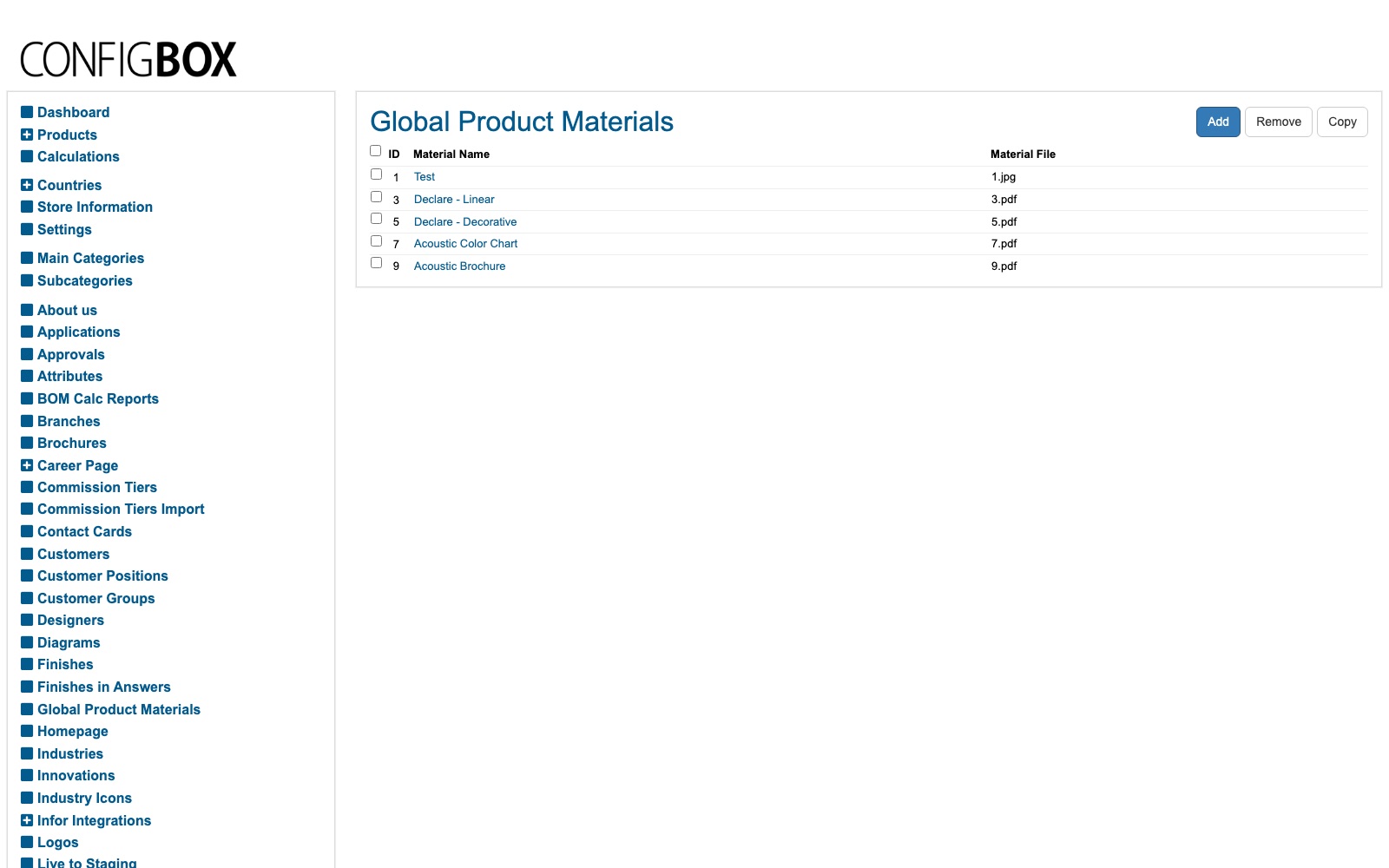
Add a shared file
- Click Add.
- Fill in Material Name. This is the only human-readable label the screen has (see the warning below), so make it specific: Declare – Linear, not Declare.
- Choose the Material File and upload it.
- Save.
The file is now available to every product, but no product offers it yet — that is a separate step.
Offer the file on a product
- Open the product and find its Materials section — see Manage a product's downloads.
- Add a material and set the type to Global File.
- A Global Material dropdown appears, listing everything on this screen by Material Name. Pick one.
- Set the ordering, tick published, and Save.
Repeat for each product that should offer it. There is no "apply to all products" button — the link is made one product at a time.
What happens next
- The file appears in that product's row on the public Resources & Downloads page, and is included in the All zip.
- Replacing the file here replaces it everywhere. Upload a new version on this screen and every product linked to it serves the new file at once — that is the whole point of the screen, and the main reason to use it rather than uploading the same PDF to twenty products.
Good to know
- The file list shows an ID, not your filename. The Material File column reads
3.pdf,5.pdfand so on, because the site renames each upload after its record. Your original filename is not kept, so the Material Name is the only way to tell two entries apart. Name them carefully. - "Declare" is not a download type — a Declare label is simply a shared file with a good name. The same goes for any other document that isn't in the built-in type list.
- Deleting an entry breaks the products pointing at it. Nothing warns you, and nothing tells you which products those are. Before removing an entry, check with your Beta-Calco contact — or just replace the file instead, which is almost always what you actually want.
- Upload limit is roughly 50 MB per file.
Don't put anything confidential here. These files are public downloads. The "login required" switch on a product's downloads does not reliably protect a file — see the warning in Manage a product's downloads.
Troubleshooting
- The file isn't in the product's dropdown. The dropdown lists everything on this screen, sorted by name — if it's missing, the entry wasn't saved. Re-open Global Product Materials and confirm it's listed.
- A product still serves the old version. The shared file itself is served live, but check you replaced the file on this screen rather than uploading a second entry with a similar name.
- Two products should offer the same file but only one does. Each product needs its own Global File material — linking one product does not link the others.
Screens and labels can differ slightly between environments — if a label doesn't match what you see, check with your Beta-Calco contact.