Manage the browse filters on the Products page
Audience: operators · Scope: the filter panel on the public Products page · Last reviewed: 2026-07-20
What this does — On the public Products page, customers narrow the catalog with the FILTERS panel down the left: New, Category, Aperture (inches), Mounting, Types, Features, Acoustics, Shapes, and Product Families. This article explains where those filters actually come from and how to change them.
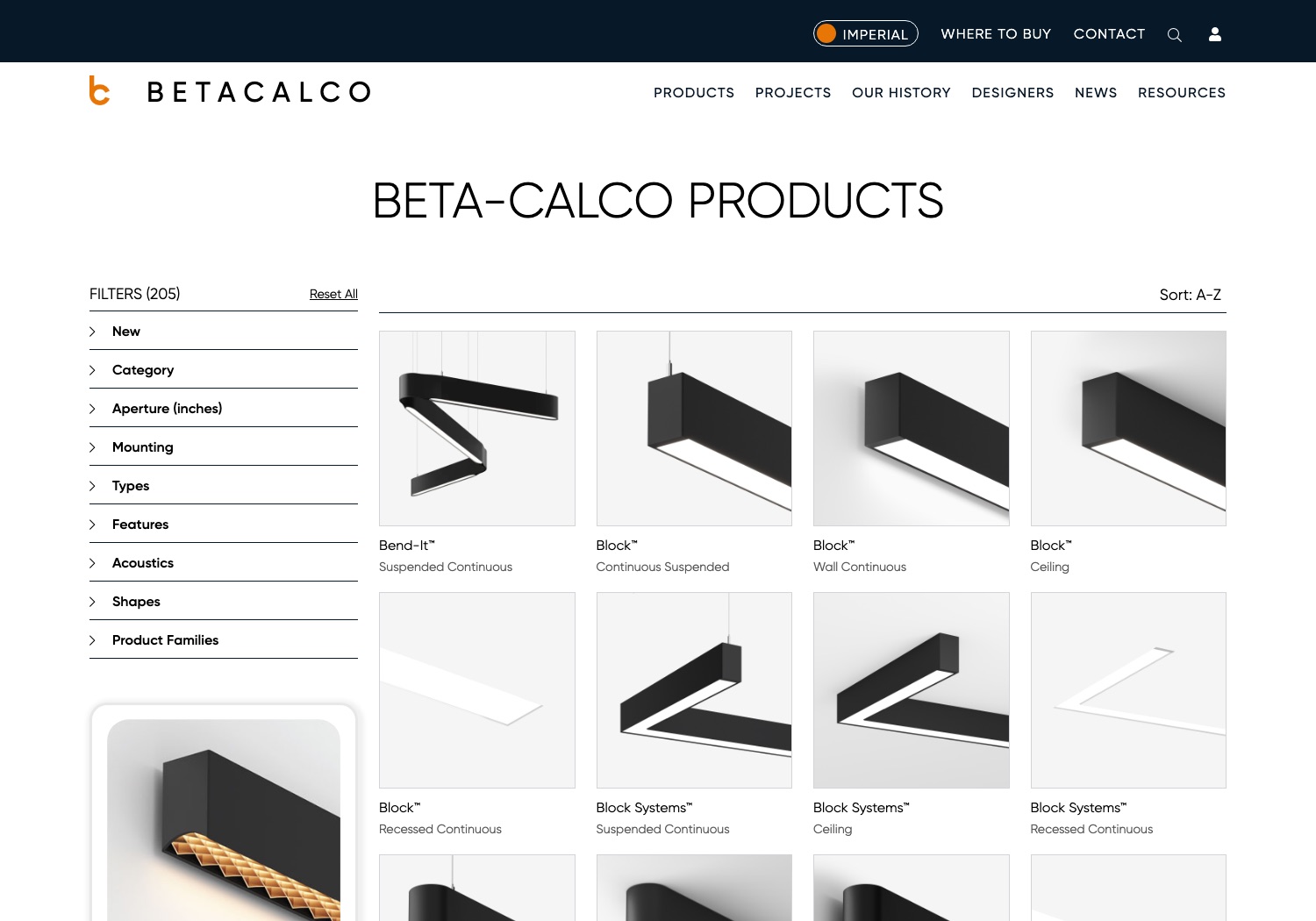
Read this first. The filters are not managed on the Mountings, Shapes, or Applications screens in the admin menu, even though those names look like a perfect match. Editing those screens will not change the filter panel. See the lists that are not the browse filters below.
Before you start
- Be signed in — see Log in to the admin area.
- Almost all of the filter panel is maintained in a Google Sheet, not in the admin screens. You'll need access to that sheet — ask your Beta-Calco contact.
How the filters are put together
There are two sources:
- The product-filters Google Sheet — this drives every filter group except Product Families. In the
sheet, the top row holds the filter group names (Category, Mounting, Types, …), a row beneath it
holds the individual filter values, and then there is one row per product with
TRUEin the columns that apply to it. - The Product Families screen — the Product Families filter is built automatically from your product families. Discontinued families are left out.
Change a filter
- Open the product-filters Google Sheet.
- Edit it:
- To add a filter group, add a column with the new group name in the top row.
- To add a filter value, add a column under the right group and give it a value.
- To put a product under a filter, put
TRUEin that product's row, in that filter's column.
- Save the sheet (Google Sheets saves as you type).
- In the admin, go to Custom Settings and open the Product overview page settings group.
- Click Refresh Product Filters. The button shows regenerating, then confirms "Refresh was successful."
What happens next
- The Products page picks up the new filters straight after a successful refresh.
- Until you press Refresh Product Filters, the site keeps serving the previous set of filters — sheet edits alone change nothing on the website.
Good to know
- The refresh is the step people forget. If someone reports that a filter change "didn't work", the sheet edit was almost certainly fine and the refresh was never pressed.
- The filters are cached for speed. That's why the refresh exists — the Products page would be far too slow if it read the sheet on every visit.
- Product Families needs no refresh — it comes straight from the admin, so adding a family shows up on its own.
- A filter with no products simply returns nothing when a customer picks it. Check the
TRUEmarks. - Don't rename filter groups casually. The group name in the sheet's top row is exactly what customers see on the page.
The lists that are not the browse filters
Three admin screens have names that collide with the filter panel. They're all real and worth maintaining — they just do something else:
| Admin screen | What it actually does |
|---|---|
| Mountings | The small mounting icons printed on the spec sheet PDF and shown on the product page. Assign them per product with the Mounting Icons field. They do not feed the Mounting filter. |
| Shapes | Fills the Product Shape dropdown on the product edit form — a classification on the product record. It does not feed the Shapes filter. |
| Applications | A list of market sectors that isn't currently used anywhere on the public site. Leave it alone unless your Beta-Calco contact says otherwise. |
Each is an ordinary list screen — Add, edit, and for Mountings upload the icon image (use a high-resolution image; it's printed into a PDF).
The Mountings naming clash is baked into the product edit form itself, which warns: the filter labelled Mountings on the catalog page is the product's subcategories, while these mounting icons are only for the spec sheet and configurator.
Attributes — the technical spec fields (more specialist)
Attributes are a different, more technical list: the spec data points a product carries — Weight, Beam, CRI, Color CCT, Delivered lumens, CBCP, and the like. Each has a Data Type and a flag for whether it holds measurement data. These feed the specification sheets and technical filtering.
Attributes are specialist — adding or changing one affects spec sheets and data across products. Rename an existing attribute's display title freely, but check with your Beta-Calco contact before adding new ones or changing data types.
Troubleshooting
- A filter change isn't on the site. Press Refresh Product Filters in Custom Settings, then reload the Products page.
- You edited Mountings/Shapes and nothing changed on the filter panel. That's expected — see the table above. The filter panel comes from the Google Sheet.
- The refresh reports an error. The sheet may have moved, been renamed, or had its sharing changed. Ask your Beta-Calco contact to check the sheet setting.
Screens and labels can differ slightly between environments — if a label doesn't match what you see, check with your Beta-Calco contact.