Import performance (photometric) data
Audience: operators · Scope: the Performance Data Import screen · Last reviewed: 2026-07-20
What this does — Refreshes the performance (photometric) data behind the products — the lumen outputs, wattages, and multipliers used on spec sheets and in the configurator — by importing the latest numbers from the master Google Sheets. You run it whenever the source sheets have been updated.
Before you start
- Be signed in — see Log in to the admin area.
- The source Google Sheets must be up to date — the import copies whatever is in them. The sheets the import reads are configured under Custom Settings (section Performance Data); you don't normally change that.
Steps
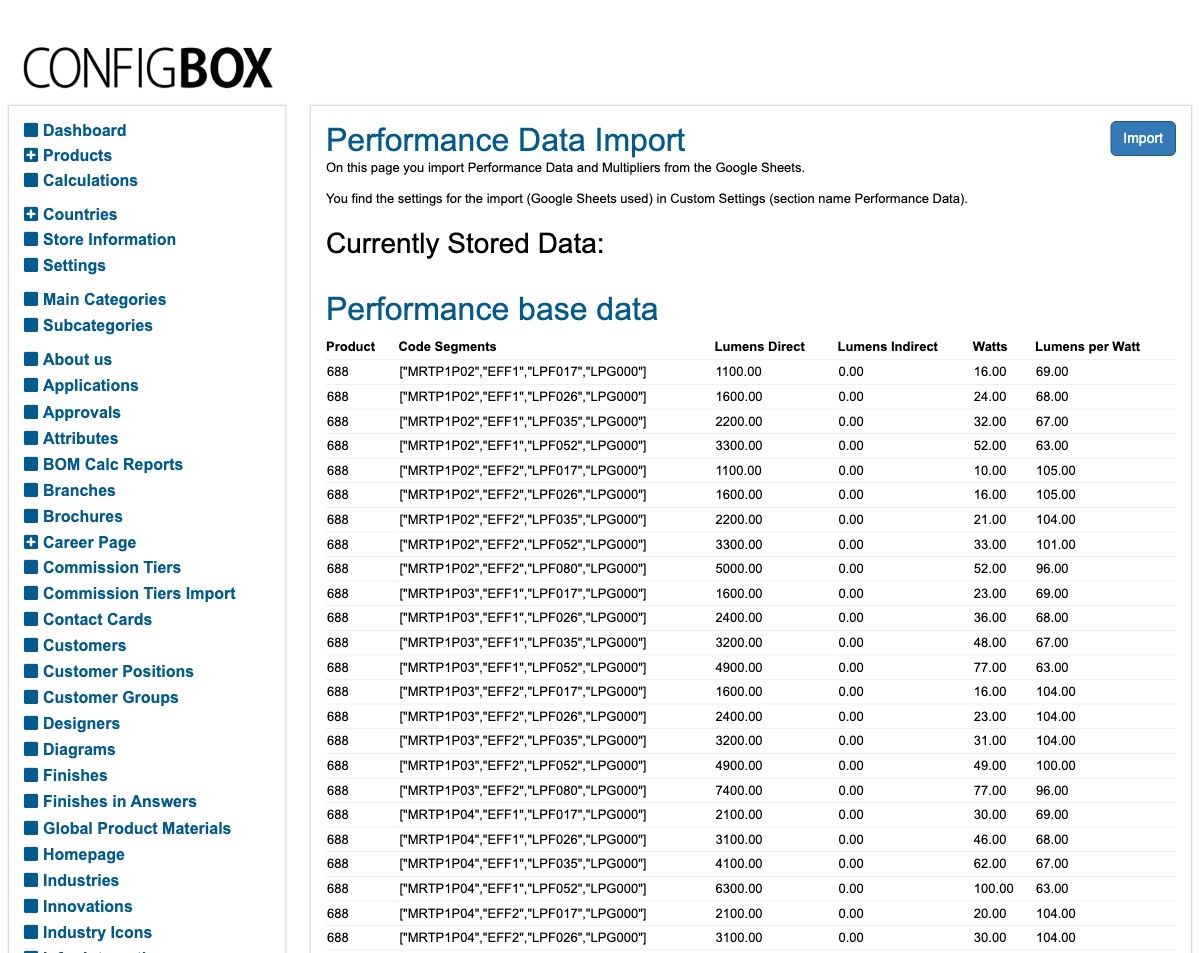
- Click Performance Data Import in the menu.
- Click Import (top-right).
- Wait for it to finish. When it's done, scroll down to Currently Stored Data to confirm the numbers look right.
What happens next
- The site replaces its stored Performance base data (lumens direct/indirect, watts, lumens per watt per product code) and Performance Data Multipliers with what's in the sheets.
- Those numbers then feed the spec sheets and the performance figures shown in the configurator. If a spec sheet still shows old numbers, refresh that product's cached spec sheet (see Add or edit a product).
Turn the figures on for a product
Importing the numbers is only half the job — each product has its own switch:
- Open the product and find Performance Data Display.
- Set Enable Performance Data Display to Yes. Only do this once engineering has confirmed the product's data is complete — that's what the switch is for.
- Pick the primary and secondary disclaimer. The secondary one is used when a multiplier applies to the figures; the primary one otherwise. Both come from Performance Data Disclaimers in the menu.
- Save, then refresh the product's spec sheet — see Design the spec sheet.
Good to know
- The import mirrors the sheets. It's only as correct as the source Google Sheets — check those first if a product's numbers look wrong.
- A product missing from the sheet gets switched off. If a product has no rows in the import sheet, the import sets its Enable Performance Data Display back to No — silently. So if a product suddenly stops showing figures after an import, the first thing to check is whether its rows are still in the sheet.
- Re-importing replaces everything. The import clears the stored data and reloads it from the sheets, so a sheet that's missing rows means the site is missing them too. Check the sheet before importing, not after.
- The stored data is shown on the page (paginated) so you can spot-check after importing.
- Disclaimers are separate. The wording that appears alongside performance data is managed under Performance Data Disclaimers in the menu — edit that if you need to change the disclaimer text rather than the numbers.
Troubleshooting
- A product's lumens/watts look wrong after import. The value almost certainly comes from the source sheet — correct it there and re-run the import. If the sheet is right but the site is wrong, check with your Beta-Calco contact (the sheet settings live in Custom Settings → Performance Data).
- The spec sheet didn't update. Re-import if needed, then Refresh cached specsheet PDF on the product.
Screens and labels can differ slightly between environments — if a label doesn't match what you see, check with your Beta-Calco contact.