Discontinue a product
Audience: operators · Scope: the Discontinued setting on products and product families · Last reviewed: 2026-07-20
What this does — Retires a product that Beta-Calco no longer sells, without erasing it. The product drops out of the catalog and can no longer be configured or quoted, but it stays reachable on the public Discontinued Products page so that anyone who already owns the fixture can still download its spec sheet.
That last part is the whole point: specifiers and contractors need documentation for fixtures already installed, long after the product stops being sold. Discontinue — don't delete.
Before you start
- Be signed in — see Log in to the admin area.
- Decide whether you're retiring one product or the whole family. They're separate settings and they do different things (see below).
- If the product has a successor, check the successor is in the same Product Family — that's what makes the Similar Products button appear for customers. See Manage product families.
Steps
- Open the product — from the Products tree in the menu, or via Diagnostics → Product list.
- In the General section, find Discontinued and set it to Yes.
- Click Save.
That's the whole change. Everything below follows automatically.
What happens next
On the public site, straight away:
-
The product leaves the catalog. It's gone from the products pages, its family's page, the browse filters, the downloads page, and the "related products" suggestions.
-
It can no longer be configured or quoted. Anyone opening the product's page sees only "This product has been discontinued" and a Spec Sheet button — the configurator, options and pricing don't load at all. Agents no longer find it in the product picker when building a quote.

-
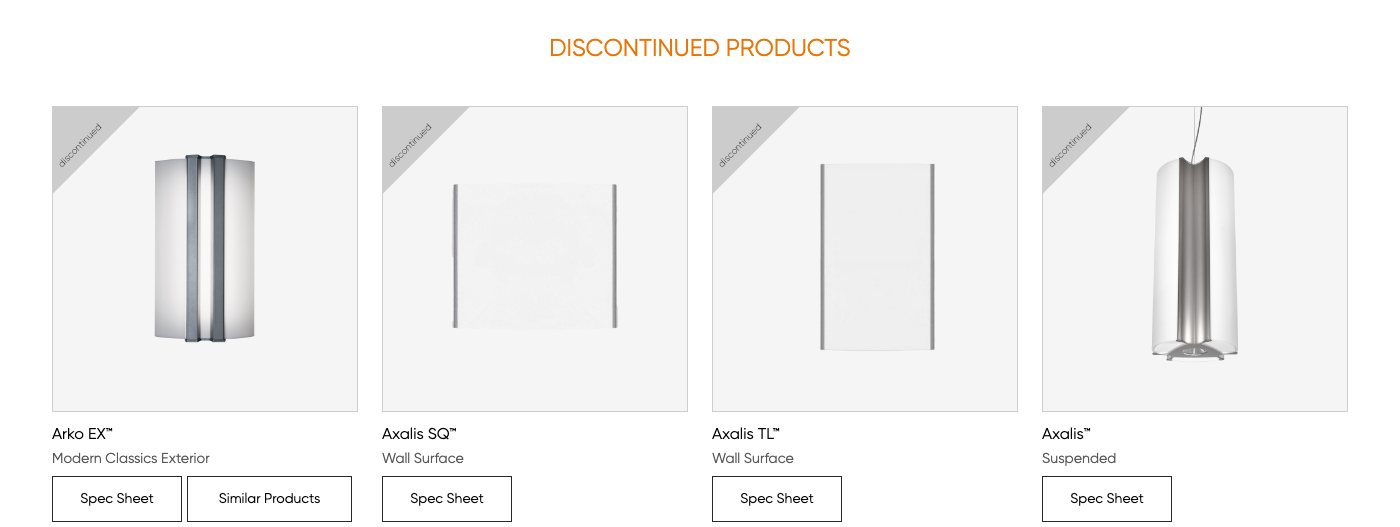
It appears on the Discontinued Products page (linked in the site footer), tiled with a corner ribbon reading discontinued, a Spec Sheet button, and — when the family still has current products — a Similar Products button that takes the visitor to the surviving alternatives.
-
It drops out of the back-office tools too — the margin/costing analysis, the image export, and the configurator data sheet all skip discontinued products.
Find the discontinued products
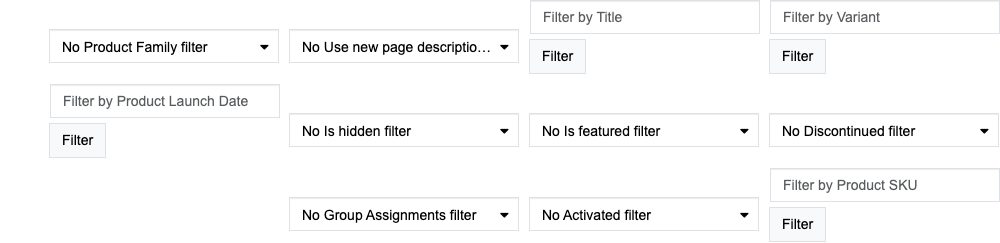
- On the Products list, the Discontinued column shows Yes/No, and the No Discontinued filter dropdown narrows the list to just the discontinued ones (or just the current ones).
- The Products tree in the left menu has the same filter, with the options No Discontinued Filter, Only discontinued, and No discontinued.
Discontinue a whole family
A Product Family has its own Discontinued setting, and it does something narrower than you might expect:
- Click Product Families in the menu and open the family.
- Set Discontinued to Yes and click Save.
This removes the family from the family lists on the products pages. It does not discontinue the products inside it — each product keeps its own setting. To retire a range properly, set Discontinued on the family and on each of its products.
Good to know
-
Discontinued is not the same as the other switches, and mixing them up is the usual source of "why can't anyone see this product?":
Setting What it does Discontinued Leaves the catalog, still on the Discontinued Products page with its spec sheet Is hidden Hidden from browsing, but still reachable if you have the link Activated Off means the product is not live at all Group Assignments Only the ticked customer groups see it A discontinued product still has to be published and still has to have the visitor's group ticked in Group Assignments — otherwise it won't even show on the Discontinued Products page.
-
There's no "replacement product" field. The successor link is worked out from the Product Family: if a discontinued product shares a family with products that are still current, customers get a Similar Products button. If you want a specific successor suggested, put it in the same family.
-
Spec sheets keep working. That's deliberate — don't unpublish a discontinued product to "tidy up", or you'll take its documentation away from the people who need it most.
-
It's reversible. Setting Discontinued back to No returns the product to the catalog exactly as it was.
Troubleshooting
- A discontinued product isn't on the Discontinued Products page. Check it's still published and that the visitor's customer group is ticked under Group Assignments.
- No Similar Products button. The product's family has no current (non-discontinued) products left. Put the successor in the same family, or accept that there's nothing to suggest.
- The product still shows in the catalog. Confirm the change saved, then reload — a cached page can lag briefly.
Screens and labels can differ slightly between environments — if a label doesn't match what you see, check with your Beta-Calco contact.