Add or edit a product
Audience: operators · Scope: the product edit screen · Last reviewed: 2026-07-12
What this does — Lets you create a new product or change an existing one: its name and description, images, pricing, which customers can see it, and the data behind its spec sheet. The product edit screen is long — it's split into collapsible sections — so this article walks the parts you'll actually use.
Before you start
- Be signed in and familiar with the shared edit screen.
- Read How the catalog and configurator fit together first if you haven't.
- Decide the product's family, subcategory, and which customer groups should see it.
Open the product list
Click Products in the menu. You get the list of every product, with columns for Product SKU, Base Price, subcategories, Group Assignments, Is hidden, Is featured, and Discontinued, plus a row of filters to narrow it down.
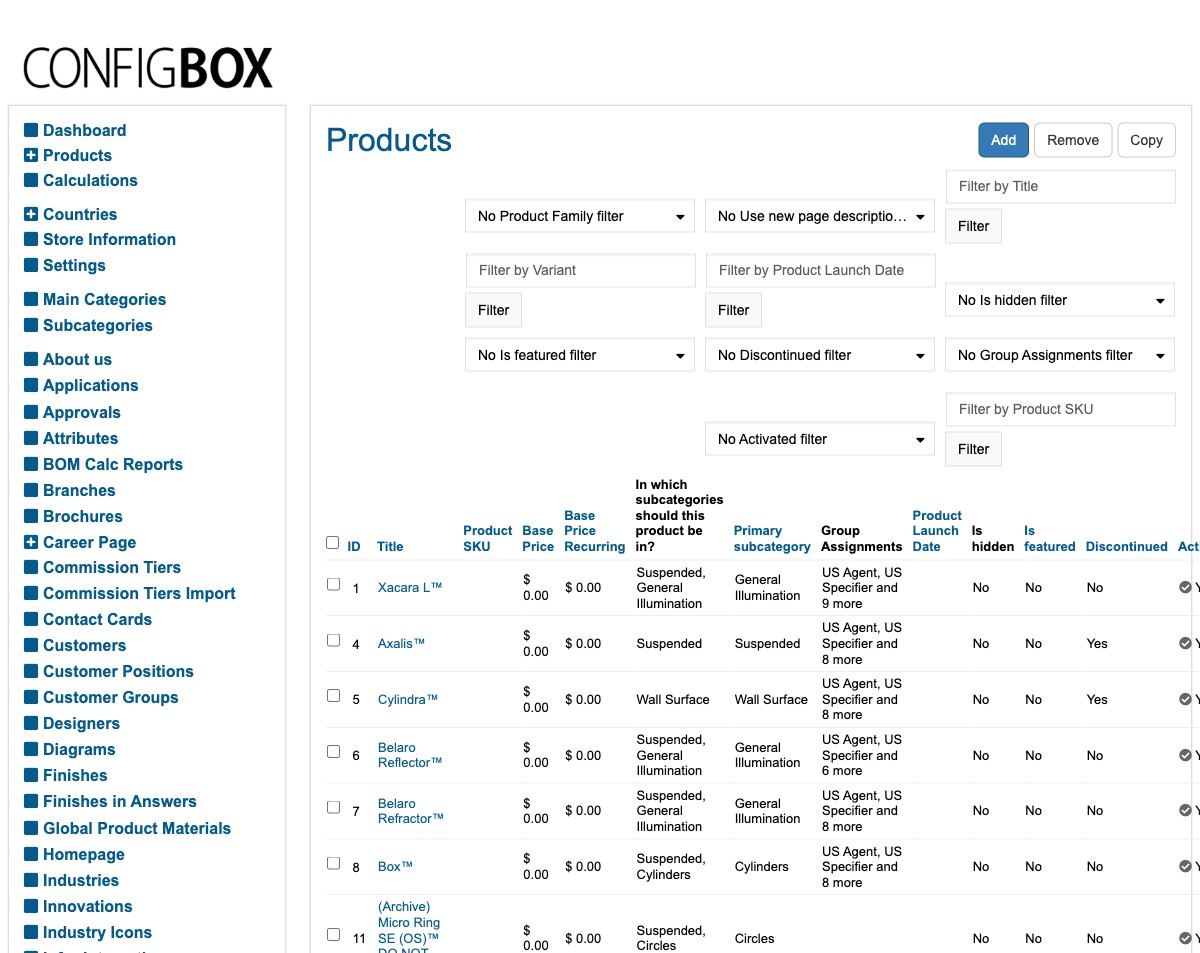
- To edit, click a product's title.
- To add, click Add and fill in the new product.
- To make a near-copy, tick a product and click Copy, then edit the duplicate.
The buttons at the top of a product
When a product is open, a few actions sit at the top:
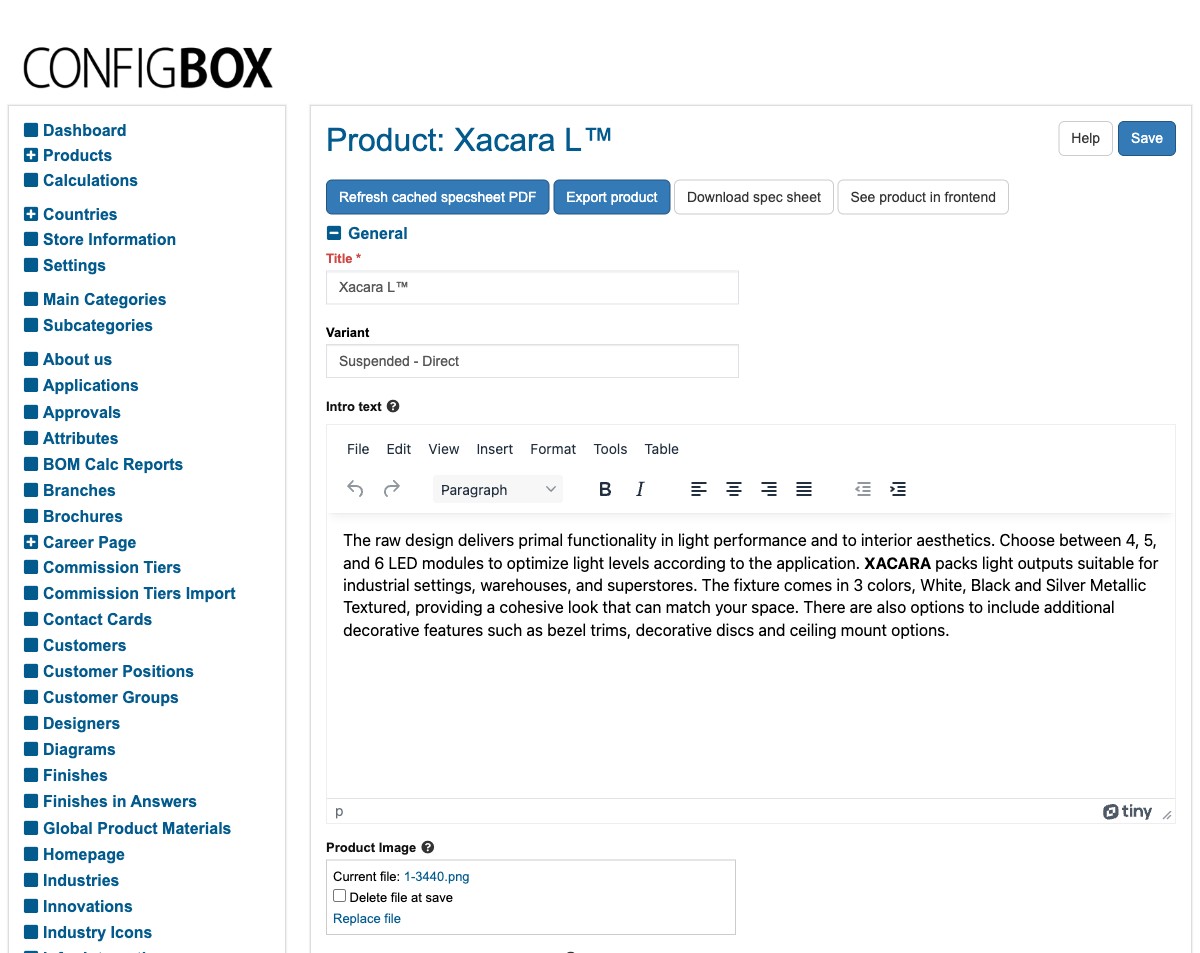
- Save — saves your changes (nothing is saved until you click it).
- See product in frontend — opens the live product page so you can check your work as a customer sees it.
- Download spec sheet / Refresh cached specsheet PDF — the spec sheet is generated and cached. If you changed something that should appear on it and it looks stale, click Refresh cached specsheet PDF.
- Export product — exports the product's data (used for transfers/backups; you'll rarely need it).
The sections you'll use most
The product's settings are grouped into collapsible sections (click a heading to open or close it). The ones that come up in everyday work:
- General — the Title, the Variant (for example Suspended – Direct), and the Intro text (the rich-text description on the product page). Product images live here and in the image sections below.
- Product Features — the feature badges shown on the product (for example Declare, Dark Sky Friendly, Tunable White, Dim to Warm, PoE, Turtle Friendly, Acoustic). Tick the ones that apply.
- Product Gallery / Visualization / Dimensional Diagrams — the pictures and diagrams shown on the product page. See Add or replace an image or file for how the file fields work.
- Base price (and Base price Recurring) — the starting price before any options are added. Option prices add on top of this.
- Display in product detail page / product listings / configurator — visibility switches, each with a Group Assignments list of customer groups. This is who can see the product and where — the same "tick the right groups" idea as everywhere else (see the edit screen).
- Spec Sheet Design / Performance Data Display — how the spec sheet is laid out and which performance numbers show on it.
Other sections handle specialist data — Candela Curves, Polar Plots, Linear/Decorative Performance Data, TM-30 Data (the photometrics), Commission, Volume Discount, Setup Charges, Infor CPQ Integration, Product Materials, and Product Clones. You can leave these as they are unless you've been asked to change one. The one that's a simple yes/no is Acoustic Calculator — the last section on the form, a single Yes/No switch that puts an ACOUSTIC CALCULATOR button on the product page; see Update the acoustic calculator.
Hiding, featuring, or discontinuing a product
These three appear as columns in the product list and as settings on the product:
- Is hidden — takes the product off the public catalog without deleting it.
- Is featured — promotes it (for example on the homepage / featured areas).
- Discontinued — marks it discontinued (it moves to the Discontinued Products handling rather than being removed).
What happens next
- After Save, changes are stored. Use See product in frontend to confirm, and remember the spec sheet may need Refresh cached specsheet PDF to pick up changes.
- Visibility depends on both the Display in… switches and the Group Assignments — a product hidden from a group won't appear for those customers.
Good to know
- The screen is long on purpose — collapse sections you're not using so you can focus. Your changes across all sections save together when you click Save.
- Spec sheets are cached. If a change doesn't show on the downloaded spec sheet, refresh the cached PDF.
- Price = base + options. The Base price here is only the starting point; what a customer pays also depends on the options they pick (see How it fits together).
Troubleshooting
- The product isn't visible to a customer. Check the Display in… switches and the Group Assignments for the area in question, and that Is hidden is off.
- The spec sheet looks out of date. Click Refresh cached specsheet PDF, then download it again.
Screens and labels can differ slightly between environments — if a label doesn't match what you see, check with your Beta-Calco contact.