Set up a SQL to Google Sheet export
Audience: operators with export permission (specialist) · Scope: the SQL Exports to Google Sheet screen · Last reviewed: 2026-07-20
What this does — Runs a saved database query and writes the result straight into a Google Sheet. This is how most of the Infor data lands in the sheets the production, fabrication, kitting and engineering teams work from — Fabrication Jobs, Open PO Lines, Packing Records, Cycle Counts, and so on.
This screen is permission-restricted and specialist. It runs queries directly against the Infor and website databases. If you don't have access, you don't need it — ask your Beta-Calco contact for the export you're after.
Before you start
- Be signed in with an account that has export permission — see Log in to the admin area. Without it the screen refuses to open.
- Click SQL to Google Sheet Exports in the menu (under Infor Integrations).
- Share the destination sheet with the service account first — see Make a sheet available below. A sheet that hasn't been shared can't be picked.
What the list shows
Each row is one saved export: its Internal Name, the Database endpoint it queries, and the Google Sheet it writes to. Use the No Database endpoint filter dropdown to show just the Infor ones or just the website ones.
If a destination sheet isn't reachable, the Google Sheet column says so instead of naming the sheet — that export is broken until the sheet is shared again.
Create or edit an export
- Click Add, or open an existing export.
- Fill in:
- Internal Name — this is how it appears in the list, so make it say what the data is and who it's for.
- Database endpoint (required) — Infor App DB for ERP data, Website DB for data from the site itself.
- Query (required) — the query that produces the rows.
- Columns that need transforming to date format — name the columns that should land in the sheet as dates rather than raw values.
- Columns that need transforming to decimals — likewise for numbers, so the sheet can calculate with them.
- Google Sheet (required) — pick the destination from the list of shared sheets.
- Notes — leave a note for whoever picks this up next. Worth doing.
- Click Save.
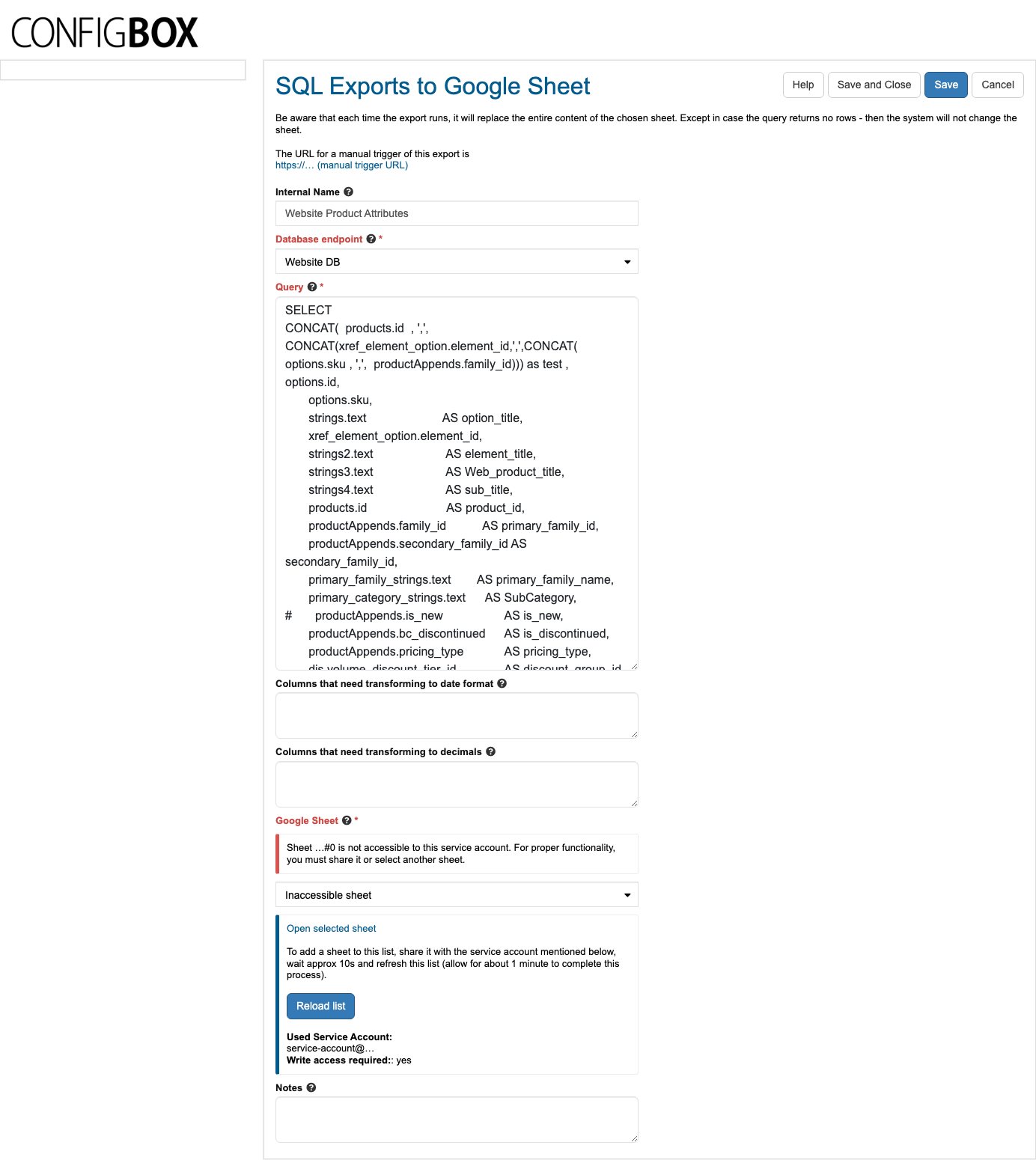
The screenshot above has the service-account address and the sheet reference blanked out — treat both as sensitive when sharing screenshots of this screen yourself.
Make a sheet available
The system reaches Google as its own service account, so a sheet is invisible to it until it's shared:
- On the export's edit screen, find the service account address shown under the sheet picker.
- In Google Sheets, share the destination sheet with that address, giving it edit access — write access is required, because the export overwrites the sheet.
- Back in the admin, wait about ten seconds and click Reload list. Allow up to a minute for the sheet to appear.
- Select the sheet and Save.
What happens next
- Each run replaces the entire contents of the chosen sheet. Anything typed into that sheet by hand is overwritten.
- A query that returns no rows changes nothing. The system leaves the sheet as it was rather than emptying it — so a stale sheet can mean "the query found nothing", not "the export is broken".
- Most exports are run on a schedule rather than by hand. The edit screen also shows a manual trigger URL for that export.
Good to know
- Treat the trigger URL as sensitive. Anyone who has the link can cause that export to run — don't paste it into shared documents or tickets.
- Never point an export at a sheet people edit by hand. Give each export its own sheet and let people build their working views in a separate file that reads from it.
- Check the sheet after your first save. A wrong endpoint or a query returning nothing both look like "nothing happened".
- Date and decimal columns matter. If a sheet's formulas are producing errors or treating numbers as text, the column is usually missing from the transform lists.
- Schedule exports are separate. The production/fabrication/assembly/warehouse-kitting schedule sheets run automatically behind the scenes and have no button here.
Troubleshooting
- "…is not accessible to this service account." The sheet was never shared, was un-shared, or was deleted. Re-share it with the service account address and click Reload list.
- "The list of sheets could not be loaded from Google." A different problem — the system couldn't reach Google at all, so it can't tell you anything about your sheet. Your saved setting is untouched. Wait a moment and click Reload list; if it keeps failing, contact IT quoting the reason shown.
- The sheet hasn't changed since yesterday. Either the query returned no rows (the system then leaves the sheet alone), or the scheduled run didn't happen. Check the query first.
- The screen won't open at all. Your account doesn't have export permission — ask your Beta-Calco contact.
Screens and labels can differ slightly between environments — if a label doesn't match what you see, check with your Beta-Calco contact.