Import the price list
Audience: operators · Scope: the Price List Import screen · Last reviewed: 2026-07-12
What this does — Updates the prices across the catalog by uploading a price-data CSV file. It can validate the data as it goes and, optionally, refresh the commission tier assignments at the same time.
Before you start
- Be signed in — see Log in to the admin area.
- Have the price-data CSV ready, and know which delimiter it uses (comma or semicolon — see below).
- Price imports are significant — if you're new to this, do it with your Beta-Calco contact the first time.
Steps
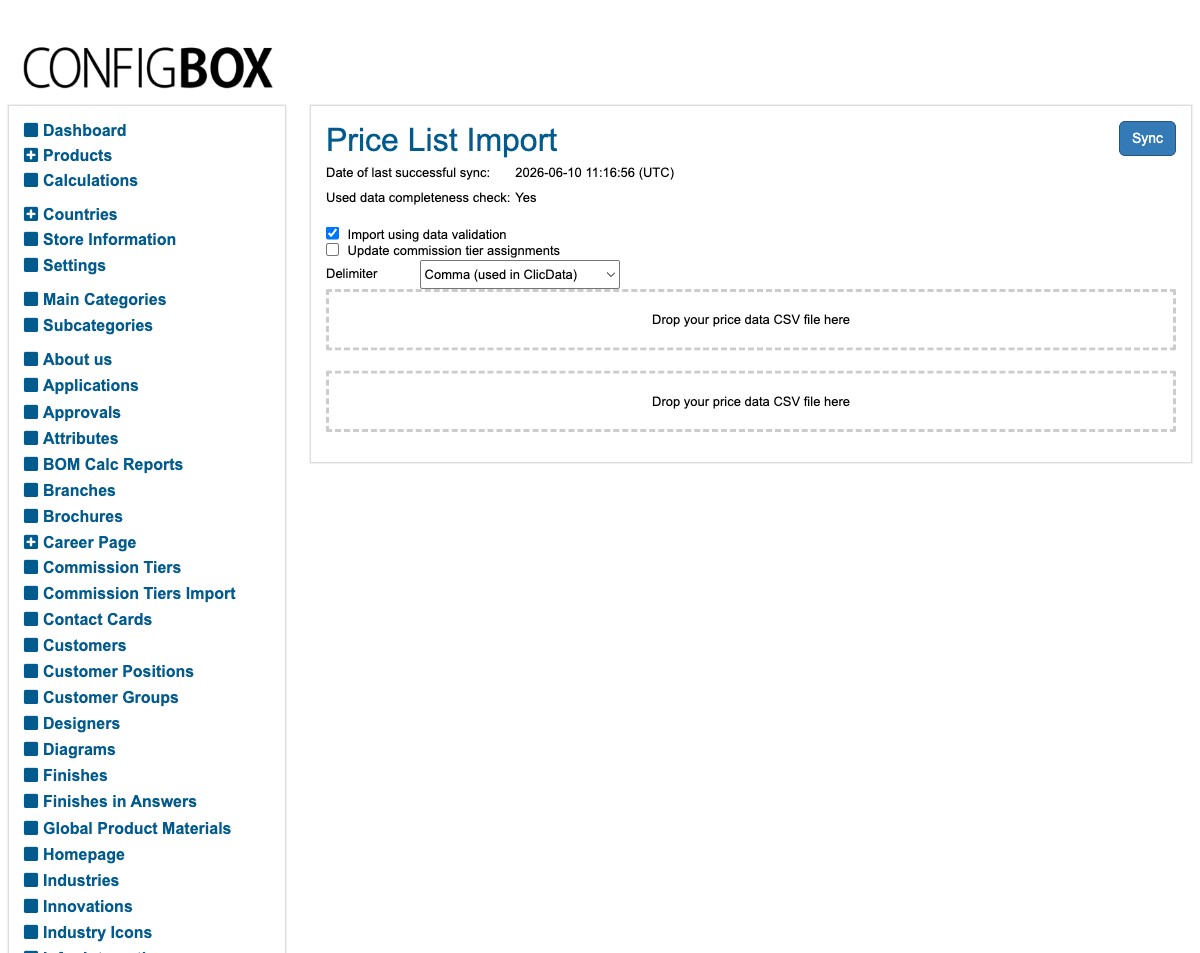
- Click Price List Import in the menu. The screen shows the date of the last successful sync.
- Choose your options:
- Import using data validation — leave this on so the import checks the data and reports problems instead of blindly loading bad prices.
- Update commission tier assignments — tick this only if the import should also refresh which commission tier each product is on.
- Delimiter — pick the character that separates columns in your file: Semicolon (files saved from Excel) or Comma (files from ClicData). Choosing the wrong one will make the import misread the file.
- Drop your price-data CSV file onto the drop zone (or click it to choose the file).
- Click Sync and wait for it to finish.
What happens next
- The prices are updated across the catalog. With validation on, any problem rows are reported (Beta-Calco sends this feedback to a tracking sheet) so they can be fixed rather than silently loaded.
- The date of last successful sync updates when it finishes cleanly.
Good to know
- Keep validation on. It's the safety net — it catches malformed rows, missing values, and bad prices before they reach live products.
- Delimiter must match the file. If the preview or result looks scrambled, you almost certainly picked the wrong delimiter — re-export or switch it and try again.
- Big files are heavy. A full price list is a large import; let it finish, and don't run two at once.
- Commission tiers are optional here — only tick that box when the price file is also meant to move products between commission tiers.
Troubleshooting
- The import reports lots of errors. That's validation doing its job — the source file has issues. Fix them in the source and re-import; don't turn validation off to force it through.
- Nothing imports / it fails immediately. Check the delimiter matches the file, and that the file is a proper CSV. If it still fails, note the message and check with your Beta-Calco contact.
Screens and labels can differ slightly between environments — if a label doesn't match what you see, check with your Beta-Calco contact.