Search and filter a list
Audience: operators · Scope: the filters on a list screen · Last reviewed: 2026-07-12
What this does — Most lists are long (hundreds of products, dozens of news posts). The filters at the top of a list screen narrow it down so you can find the one item you're after. Filters only change what you're looking at — they never change the data.
Before you start
- Be signed in and on any list screen — see Add, edit, copy, or remove items.
The two kinds of filter
Above the table you'll see a set of filter controls. There are two kinds:
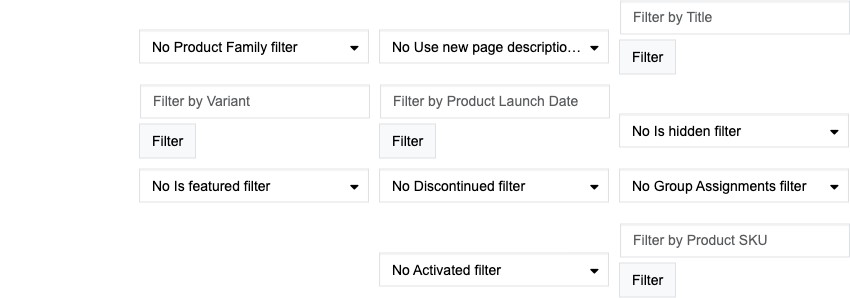
- Type-in boxes — labelled Filter by … (for example Filter by Title, Filter by Product SKU). Type part of what you're looking for and click the Filter button next to it. The table narrows to rows that match.
- Choose-from dropdowns — labelled No … filter until you pick something (for example No Published filter, No Discontinued filter, No Group Assignments filter). Open the dropdown and choose a value to show only rows in that state. "No … filter" means that filter is currently off.
Which filters appear depends on the list — a simple list may have just Filter by Title, while the Products list has many.
Steps
- Type into a Filter by … box and click its Filter button, and/or choose a value from one or more dropdowns.
- The table updates to show only matching rows. You can combine filters — for example Published = Yes and a title containing "ring" — to narrow further.
- To see everything again, clear the filters: empty the type-in boxes (and click Filter) and set the dropdowns back to No … filter.
What happens next
- The list shows only the rows that match. Open, edit, copy, or remove them exactly as usual — see Add, edit, copy, or remove items.
Good to know
- Filters hide, they don't delete. Clearing the filters brings every row back — nothing is changed or lost.
- "No … filter" = off. A dropdown still reading No … filter isn't limiting anything.
- Can't find something you know exists? A filter is probably still on from earlier — clear them all and look again. This is the most common reason an item seems to "disappear".
- Long lists page. If the results still span several pages, use the page numbers (and the items per page control, where shown) at the bottom of the table.
Screens and labels can differ slightly between environments — if a label doesn't match what you see, check with your Beta-Calco contact.